How to Fix the Infinite Steam "Loading User Data" Loop on GeForce NOW (Android Guide)
Stuck in an endless Steam "Loading user data" loop on GeForce NOW using an Android phone without access to a PC? Here are the best workarounds to bypass the freeze and get back into your games.
The Frustration of the Mobile Cloud Login Loop
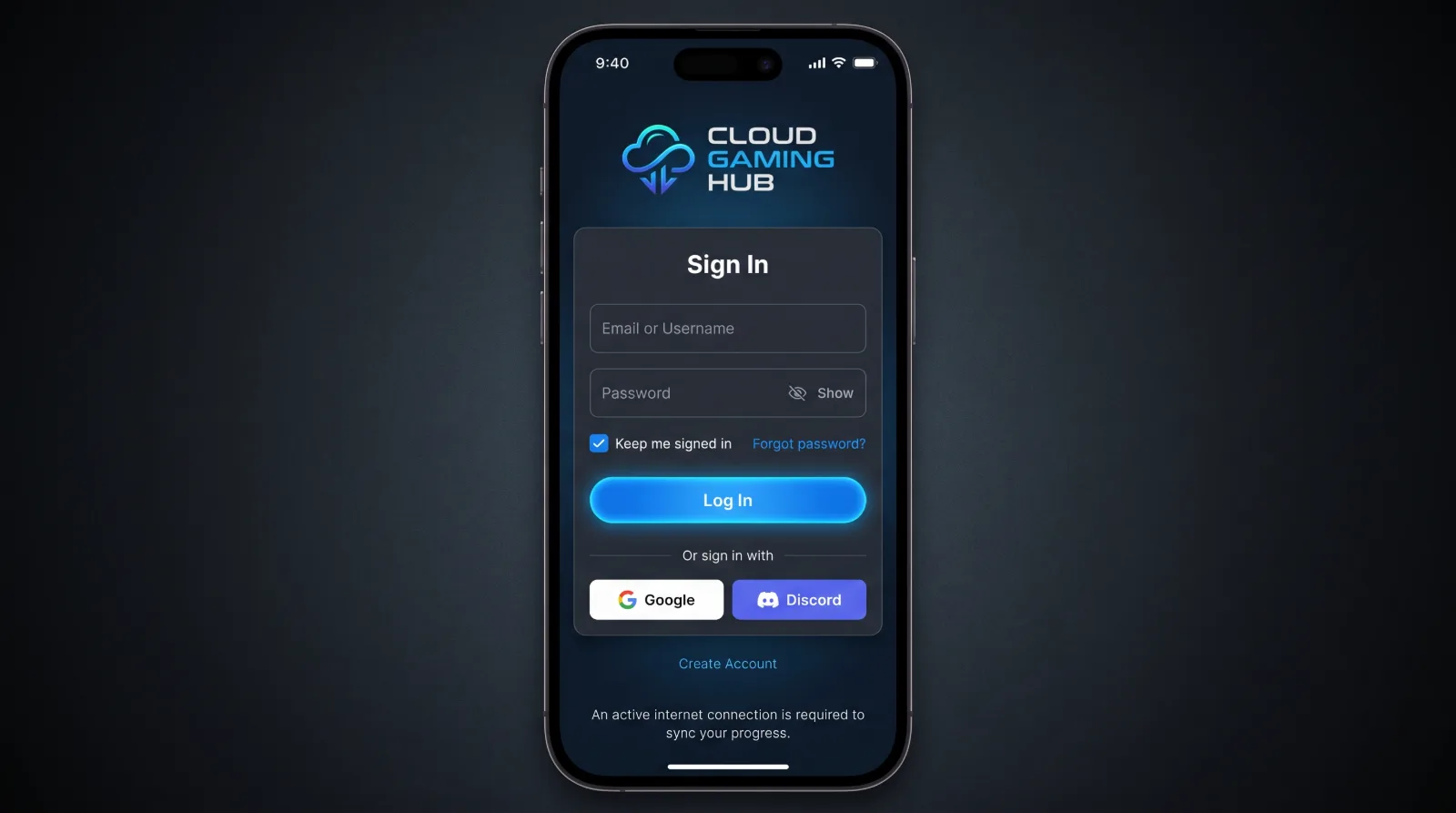
Cloud gaming services like GeForce NOW have made high-end PC gaming accessible on lightweight hardware, including modern Android smartphones and tablets. However, technical friction can occasionally derail a gaming session. A recurring issue reported by mobile-only cloud gamers involves getting trapped in an endless authentication loop where Steam freezes indefinitely on the "Loading user data..." screen after entering login credentials and OTP codes.
For users who rely entirely on an Android device and do not own a desktop PC or laptop to bypass or reset client states locally, this bug can feel completely impassable. Fortunately, several targeted troubleshooting steps can help break the cloud session cache and restore normal functionality.
Why Does the Steam Login Loop Happen on Cloud Rigs?
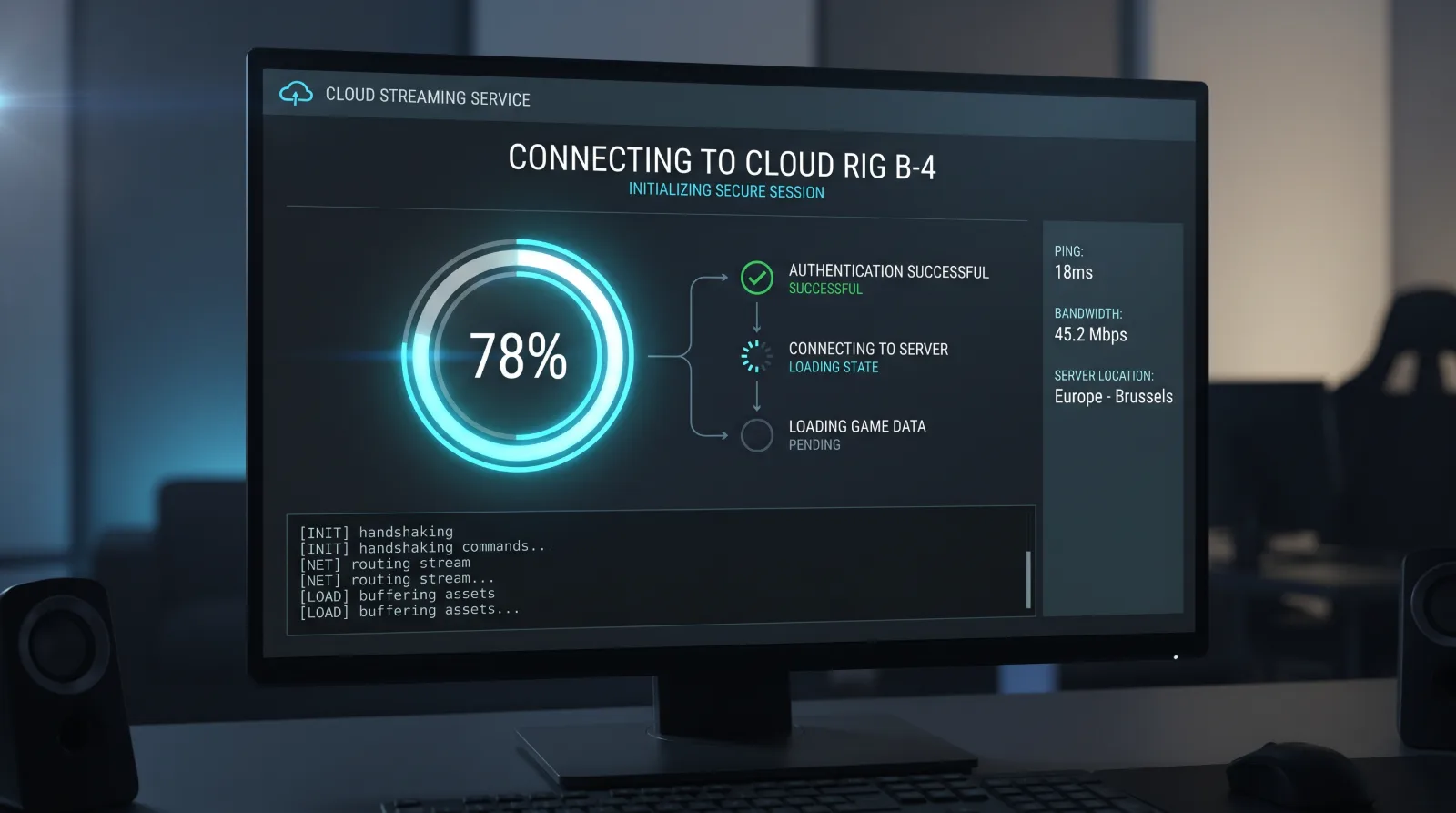
When you launch a Steam game on GeForce NOW, the service spins up a virtual remote machine (rig) in a data center. If your temporary session profile, credential token, or cloud synchronization cache becomes desynchronized with Valve's authentication servers, the virtual client hangs indefinitely while attempting to fetch your cloud data payload.
Because mobile browsers and app wrappers handle virtual keyboard inputs and session cookies differently than native desktop clients, standard restarts often fail to clear the underlying remote state.
Effective Workarounds for Mobile-Only Users
If you are locked out of your library on an Android device and lack a physical PC to clear desktop cache files, try these advanced recovery steps:
Force a Complete Session Reset via a Non-Steam Title: Simply relaunching another game from the same launcher often hooks into the exact same persistent virtual machine instance. To truly force GeForce NOW to allocate a brand-new hardware rig, try launching a completely free-to-play title or a game from a different storefront (such as an Epic Games Store title) first, play for a minute, and then return to your Steam library.
Clear Local App Data and WebView Cache: On your Android device, go to your system settings, locate the GeForce NOW app, and perform a full "Clear Cache" and "Clear Storage" (note: this will require you to log back into your GFN account). Additionally, ensure your device's default web browser and Android System WebView are fully updated, as OAuth login popups depend heavily on them.
Toggle Network Environments: Temporary routing hiccups between your mobile data provider and the local cloud data center can corrupt authentication handshakes. Temporarily switching from mobile data to a stable Wi-Fi network—or vice versa—can force the remote rig to re-authenticate cleanly.
Unlink and Re-link Your Accounts Properly: Disconnect your Steam account directly within the GeForce NOW app settings menu. Instead of immediately reconnecting, log into the official Steam website via your mobile browser in incognito mode, revoke active device authorizations under your account security settings, and then re-link the accounts inside the streaming app.
Keeping Your Cloud Gaming Experience Smooth
Encountering technical hurdles while gaming on mobile cloud platforms can be frustrating, but systematically clearing local caches and forcing fresh virtual rig allocations usually resolves stubborn authentication loops. Keep these recovery methods in mind so you can bypass unexpected freezes and get straight back into your favorite titles!