Steam Stuck on Loading User Data? 9 Fixes That Actually Help
Steam stuck on Loading User Data? Try nine practical fixes, check Steam server status, and learn how to get the client working again without losing your games.
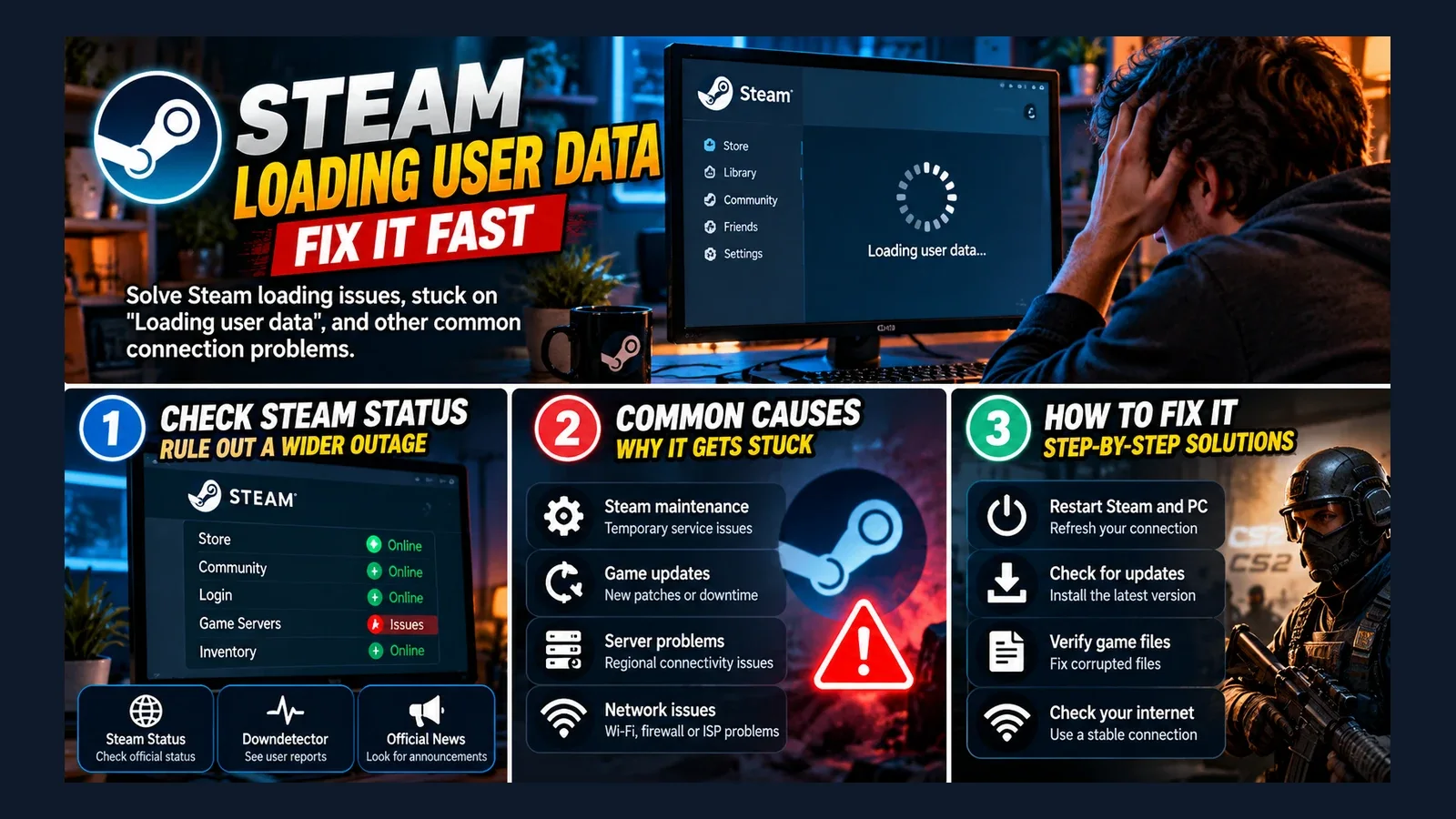
Steam Stuck on Loading User Data? How to Fix It
Is Steam stuck on "Loading User Data" when you launch the client? This frustrating problem can prevent you from accessing your library, account features, or online games.
The issue may be caused by a temporary Steam service interruption, a damaged client cache, a network problem, or an outdated installation.
Quick fix: Restart Steam completely, check whether Steam services are experiencing problems, and clear the download cache if the issue persists.
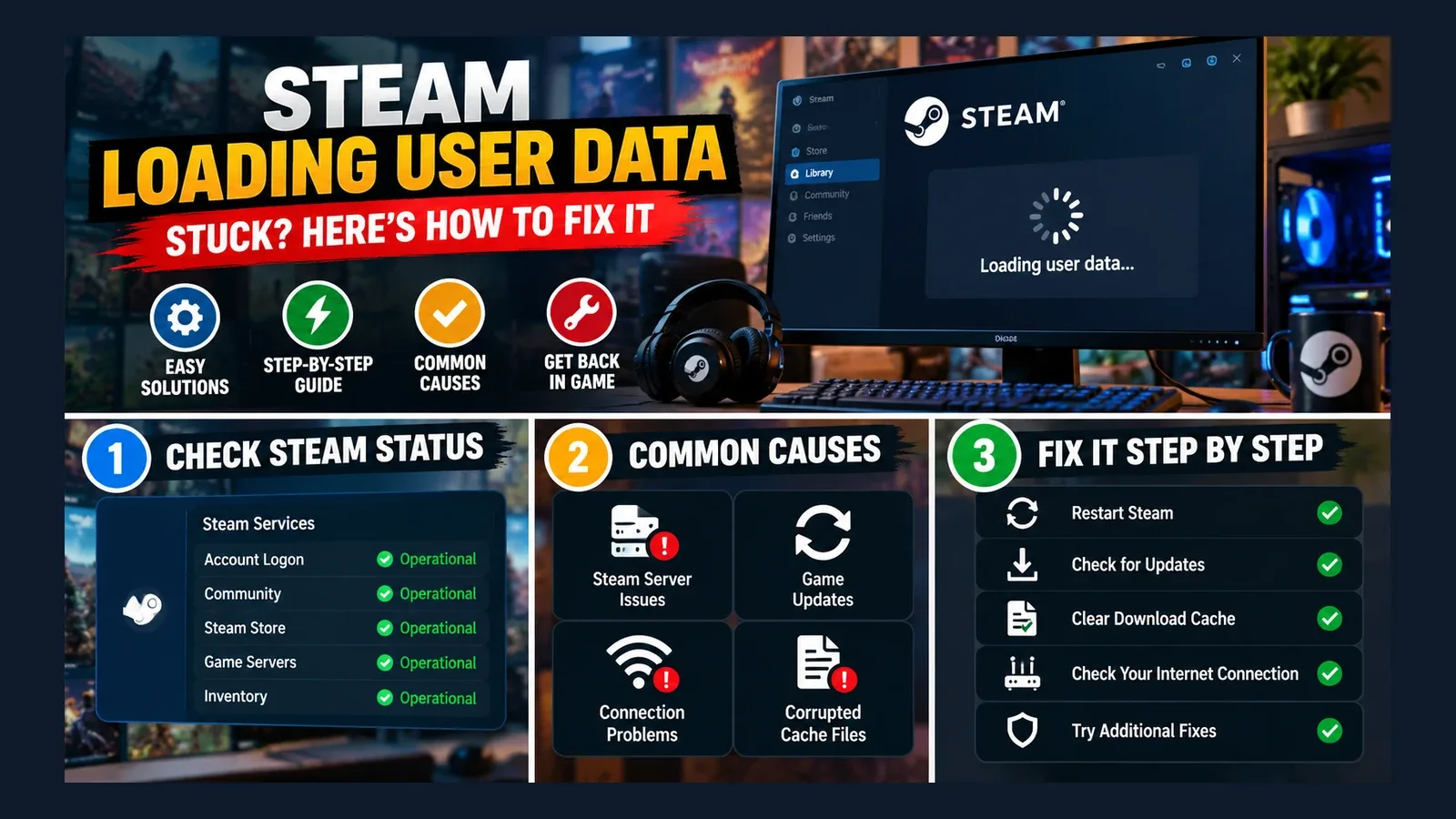
Here are nine troubleshooting methods, starting with the safest.
1. Check Whether Steam Is Down

Before changing your computer settings, check whether other users are experiencing similar problems.
Visit Steam Status to review community-maintained service information.
You can also check Downdetector for unusual spikes in outage reports.
These sources can indicate widespread issues, although neither independently confirms an official Valve outage.
If Steam is experiencing a major interruption, waiting may be the most effective solution.
2. Restart Steam Completely
Closing the Steam window may leave background processes running.
On Windows:
- Press Ctrl + Shift + Esc.
- Open Task Manager.
- Find Steam-related processes.
- Select End Task for each Steam process.
- Launch Steam again.
This forces the client to establish a fresh session.
3. Restart Your Computer
A system restart can resolve temporary networking problems or processes preventing Steam from launching correctly.
Restart Windows and open Steam before launching other applications.
4. Check Your Internet Connection
Steam needs a working internet connection for account authentication and online services.
Try opening several websites or checking another online application.
If your connection is unstable, restart your router.
Where possible, test a wired Ethernet connection instead of Wi-Fi.
5. Clear the Steam Download Cache
Corrupted cached data can sometimes cause Steam client problems.
If you can access Steam settings:
- Open Steam.
- Select Settings.
- Navigate to Downloads.
- Choose Clear Download Cache.
- Restart Steam when prompted.
You may need to sign in again.
This operation should not delete your installed games.
6. Check for Steam Client Updates
An outdated client may experience compatibility or connection problems.
If Steam opens far enough to access its menu, check for available client updates.
Install any pending update and restart the application.
If Steam cannot reach its interface, proceed with the other troubleshooting steps.
7. Temporarily Disable VPN Connections
Some VPN configurations can interfere with authentication or network routing.
Disconnect your VPN temporarily and try launching Steam again.
If this resolves the issue, review your VPN configuration before reconnecting.
Avoid disabling antivirus or firewall protection unnecessarily.
8. Repair Steam Client Files

If the client installation is damaged, reinstalling Steam may help.
Before doing so, back up important local data, including any game saves that are not synchronized with Steam Cloud.
Follow the official instructions at Steam Support.
Do not manually delete your Steam library or installation folders without understanding what they contain.
9. Contact Steam Support
If none of the previous methods works, contact Steam Support.
Describe:
- The exact error message.
- Your operating system.
- When the problem started.
- Whether Steam works on another network.
- Which troubleshooting steps you attempted.
This information can help identify account-specific or client-related problems.
Why Does Steam Get Stuck on Loading User Data?
Common explanations include temporary authentication failures, Steam service interruptions, network instability, or corrupted local client data.
A sudden increase in searches for the same error can suggest that many users are affected simultaneously.
However, search trends alone do not prove that Steam is experiencing an outage.
Frequently Asked Questions
Is Steam down right now?
Check current service information and user reports. A loading error on your computer does not necessarily indicate a global outage.
Will clearing the Steam cache delete my games?
Clearing the download cache through Steam settings normally does not remove installed games.
Why is Steam stuck loading my account?
The client may be unable to complete authentication or load required account information.
Should I reinstall Steam immediately?
No. Start with restarting the client, checking service availability, and testing your network.
When Steam gets stuck on Loading User Data, begin with simple troubleshooting before attempting more disruptive repairs.
Check service status, restart Steam, verify your connection, and clear the download cache.
If the issue persists, use official Steam Support resources to investigate further.