Best CS2 Settings for FPS, Visibility and Low Latency
Use this tested CS2 settings baseline for smoother frame times, clear enemy models, a readable crosshair and responsive input, then tune it for your PC.
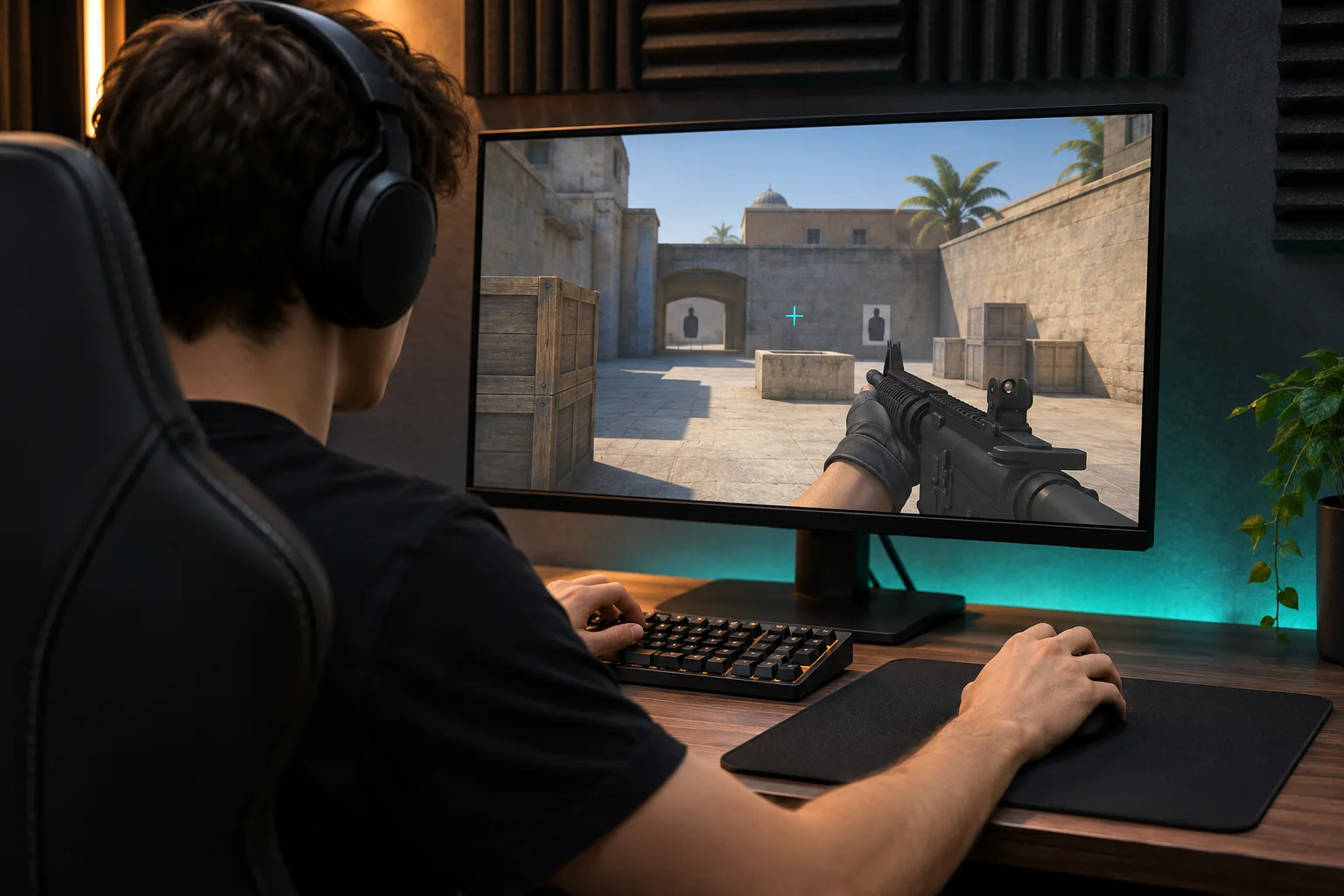
A good CS2 setup makes the game easier to read and your input more consistent. Image: HEET.GG editorial illustration.
The best CS2 settings are not a single pro player's config. They are the settings that give your PC stable frame times, clear enemy models and repeatable mouse input. Start with fullscreen mode, your monitor's highest refresh rate, NVIDIA Reflex enabled on a compatible GPU, Boost Player Contrast enabled and a simple high-contrast crosshair. Then test one change at a time.
This guide gives you a competitive baseline without pretending that one resolution, sensitivity or graphics preset works for everyone.
Best CS2 settings
| Setting | Recommended starting point | Why |
|---|---|---|
| Display Mode | Fullscreen | A clean baseline for performance and refresh-rate control |
| Refresh Rate | Highest your monitor supports | Smoother motion and more frequent visual updates |
| Resolution | Native, then test lower options | Native is clearest; lower resolutions can improve performance |
| Boost Player Contrast | Enabled | Helps player models stand out from the background |
| Wait for Vertical Sync | Off in a conventional setup | Avoids the usual V-Sync latency trade-off |
| NVIDIA Reflex Low Latency | Enabled | Reduces render-queue latency on supported NVIDIA GPUs |
| Multisampling Anti-Aliasing | 2x MSAA, then test | A practical balance between edge clarity and GPU cost |
| FidelityFX Super Resolution | Disabled unless needed | Preserves image clarity when your GPU can hit its target without upscaling |
| Crosshair | Static and high contrast | Keeps the aiming reference readable across different map surfaces |
| Telemetry | Show problems when conditions are poor | Reveals frame-time, ping and network issues during real matches |
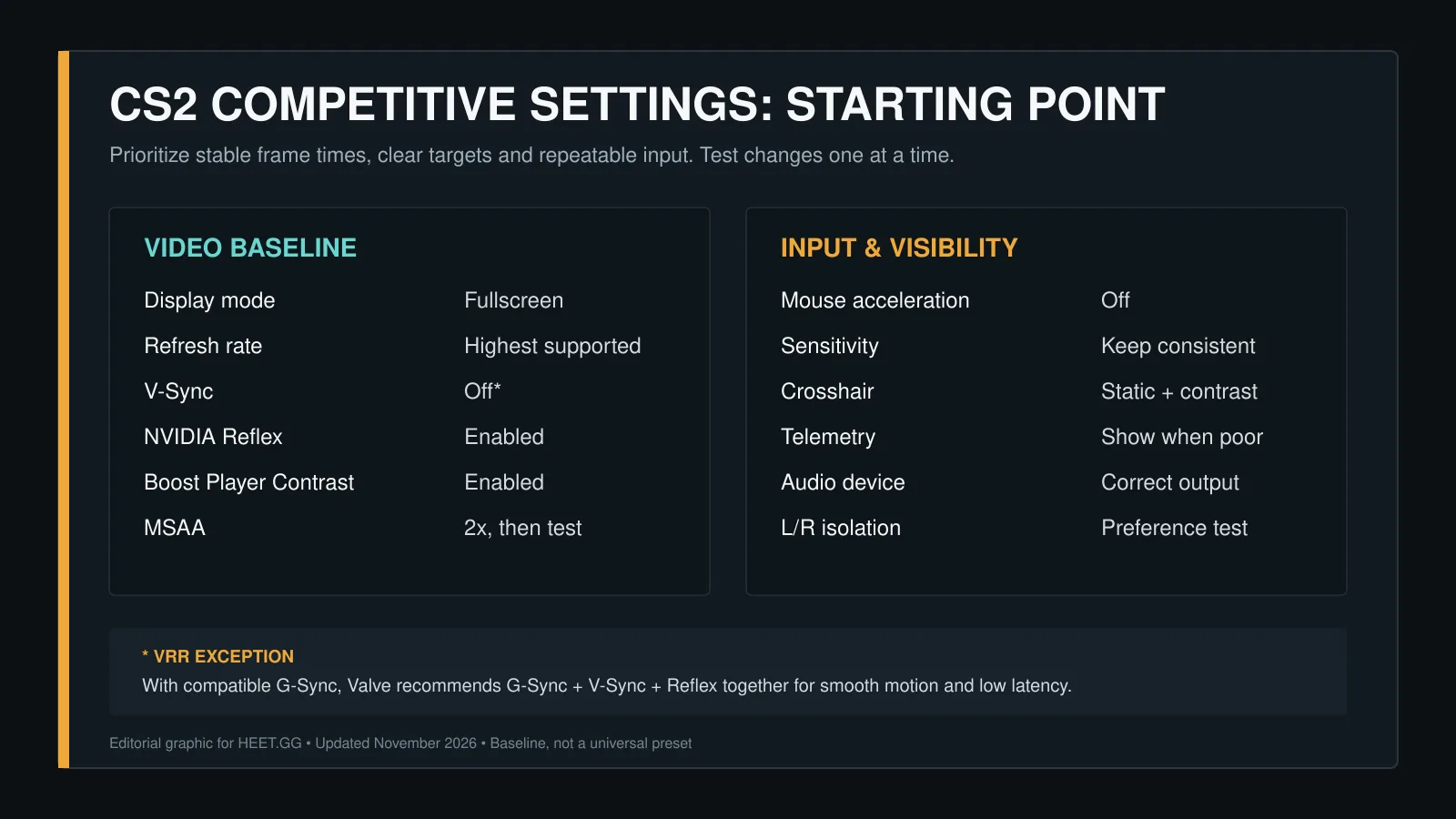
Use this as a starting point, not a universal preset. The variable-refresh-rate exception is explained below.
Best CS2 video settings
Display mode, resolution and refresh rate
Use Fullscreen as your first test profile and select the highest refresh rate supported by your monitor. Valve specifically recommends using the highest available refresh rate because higher rates produce smoother-looking motion.
Do not assume that owning a 144 Hz, 240 Hz or 360 Hz monitor means Windows is actually running it at that rate. Check the advanced display settings in your operating system as well as the in-game video menu. In fullscreen-windowed mode, CS2 follows the refresh rate configured by the system.
Start at your monitor's native resolution for the clearest image. If your frame time is unstable or your frame rate regularly falls below your target, test a lower resolution. A stretched 4:3 resolution can make models appear wider on screen, but it also changes the image and horizontal field presentation. It is a preference, not a free accuracy upgrade.
Advanced video baseline
Use these values as a conservative first pass:
| Advanced setting | Competitive baseline | When to change it |
|---|---|---|
| Boost Player Contrast | Enabled | Keep it on unless you identify a specific visual problem |
| V-Sync | Off* | Use Valve's VRR combination if you have compatible G-Sync hardware |
| NVIDIA Reflex Low Latency | Enabled | Try Enabled + Boost only when minimum latency matters more than power use and a possible small FPS cost |
| Multisampling Anti-Aliasing | 2x MSAA | Lower it if GPU load is too high; raise it if shimmering hurts visibility |
| Global Shadow Quality | Medium or above | Test lower values carefully; useful shadows can affect information |
| Dynamic Shadows | All | Preserves relevant moving shadows where supported by the scene |
| Model / Texture Detail | Low or Medium | Raise it if you have spare VRAM and prefer a cleaner image |
| Texture Filtering | Bilinear or 4x | Increase it when angled surfaces look too blurry and performance remains stable |
| Shader Detail | Low | Raise it only after confirming stable frame times |
| Particle Detail | Low | A sensible starting point for clarity and performance |
| Ambient Occlusion | Disabled or Medium | Compare visibility and GPU cost on your own system |
| High Dynamic Range | Performance | Switch to Quality if the visual gain is worth the cost on your PC |
| FidelityFX Super Resolution | Disabled | Enable only when extra performance is worth reduced image clarity |
\ G-Sync exception: Valve recommends enabling G-Sync, V-Sync and NVIDIA Reflex together* when all three are available. According to Valve, that combination limits the frame rate slightly below the display's refresh rate by design and targets smooth motion with low latency. This is different from enabling V-Sync by itself on a conventional fixed-refresh setup.
The names and available options can change with updates or hardware. Treat the table as a starting profile and confirm the labels in your current build.
Should you use NVIDIA Reflex in CS2?
Set NVIDIA Reflex Low Latency to Enabled if the option is available. Reflex coordinates CPU and GPU work to reduce the render queue. NVIDIA says the feature is most useful when a game is GPU-bound or GPU utilization is high.
Enabled + Boost can reduce latency further in some situations, but NVIDIA notes that it uses more power and may slightly reduce frame rate. Use it only after comparing frame time and latency against the regular Enabled mode. Laptop users should pay particular attention to temperatures and power limits.
AMD users will not see the NVIDIA Reflex option. Do not replace it with random launch commands. Keep drivers current, use a stable frame-rate target and measure the result in game.
Best CS2 crosshair settings
A competitive crosshair should remain visible without hiding the target. A reliable starting point is:
- a static style;
- cyan, green or another color that contrasts with most map surfaces;
- a small negative or neutral gap;
- thin lines with enough length to remain readable;
- an outline only when the crosshair disappears against bright areas;
- no center dot unless you prefer a very compact aiming reference.
There is no objectively perfect crosshair. Test it against bright walls, dark interiors, player models and smoke edges. If you lose it during a spray, increase thickness or add an outline. If it covers heads at long range, reduce its size or remove the center dot.
Valve changed CS2 crosshairs in 2026: crosshairs became resolution-independent, gained a dedicated Crosshair/Scopes settings area and received new styles. A September 30 update also added an outline-color option, allowed negative gaps for the classic dynamic style and expanded the share-code format. That means an older share code may not carry every newer preference.
Want a ready-made profile? Browse the HEET.GG pro crosshair database, import a code, then adjust it for your own resolution and visibility.
Best CS2 sensitivity and mouse settings
Do not change sensitivity just because a professional player uses a different number. The useful comparison is eDPI:
mouse DPI × in-game sensitivity = eDPI
For example, 800 DPI at 1.0 sensitivity equals 800 eDPI. The same eDPI can be created with different DPI and in-game values, although hardware behavior and personal feel can still differ.
Use a sensitivity that lets you track a moving target, make small head-level corrections and turn comfortably on your available mousepad. Once it feels controllable, keep it stable for several sessions. Constantly changing sensitivity makes it harder to separate a settings problem from an aim or movement problem.
Also check the basics:
- disable operating-system pointer acceleration for a predictable desktop-to-game setup;
- use a polling rate that your mouse and PC can sustain without stutter;
- plug the mouse into a stable USB port;
- keep the same sensitivity while comparing graphics settings;
- use the HEET.GG sensitivity converter when matching physical aim across games.
CS2 audio settings for useful information
Audio settings should help you place footsteps, utility and gunfire without making the game painfully loud. First select the correct output device. Then compare the available EQ and left/right-isolation options in a practice session rather than changing them in the middle of a match.
Use a consistent, safe listening level. Louder is not automatically more informative, and hearing damage is permanent. If voice chat masks important sounds, lower voice volume enough to keep communication clear without overpowering the game.
Avoid virtual-surround layers from multiple programs at the same time. Stacking headset software, operating-system spatial audio and in-game processing can make direction harder to judge. Test one signal path at a time.
Use CS2 telemetry to find the real bottleneck
Open Settings > Game > Telemetry. Valve's telemetry HUD can display frame time, average FPS and network conditions either all the time or only when they become poor. This is more useful than judging performance from an FPS number alone.
Watch for these patterns:
- FPS drops with high frame time: reduce GPU-heavy settings or investigate background load.
- High ping: choose a closer server region and review Max Acceptable Matchmaking Ping.
- Packet loss or jitter: check the network connection before changing video settings.
- A high average FPS with uneven motion: focus on frame-time stability, refresh-rate configuration and background processes.
Change one setting, repeat the same test and record the result. Otherwise, you will not know which change helped.
A 15-minute CS2 settings test
- Apply the baseline settings in this guide and restart CS2 after changing driver-level G-Sync or FreeSync options.
- Confirm the correct resolution and refresh rate in both Windows and CS2.
- Enable telemetry and load the same practice map for every run.
- Move through the same route, use the same weapons and throw the same utility for three to five minutes.
- Note average FPS, frame-time spikes, visibility problems and input feel.
- Change one demanding option, such as MSAA or resolution, and repeat the route.
- Keep the profile that feels consistent in a real match, not merely the one with the highest peak FPS.
Save a screenshot of your final settings. Updates, driver resets or hardware changes can alter them later.
CS2 settings mistakes to avoid
- Copying a pro config without understanding it. Their monitor, GPU, resolution and habits may be completely different.
- Chasing maximum FPS at any cost. A blurry or unstable image can make targets harder to read.
- Using old launch-option packs. Many copied commands are obsolete, irrelevant or harder to troubleshoot than the in-game menu.
- Ignoring refresh rate outside the game. A high-refresh monitor can still run at a lower system setting.
- Changing sensitivity and graphics together. You lose the ability to identify which change affected your aim.
- Testing only in an empty map. Smokes, utility, players and effects can expose problems that a quiet practice scene will not.
Frequently asked questions
What are the best CS2 settings for maximum FPS?
Start with fullscreen mode, the highest supported refresh rate, low shader and particle detail, and 2x or disabled MSAA. Keep Boost Player Contrast enabled and avoid lowering settings that remove useful visual information without testing them. If performance is still unstable, reduce resolution before using aggressive upscaling.
Is 4:3 stretched better than 16:9 in CS2?
Neither is universally better. Stretched 4:3 makes models appear wider but provides a different horizontal presentation and a softer image at many resolutions. Native 16:9 is clearer and shows more horizontally. Use the option that gives you consistent visibility and performance.
Should V-Sync be on or off in CS2?
Keep it off for a conventional competitive setup. If you have compatible G-Sync hardware, follow Valve's recommendation to use G-Sync, V-Sync and Reflex together. Do not treat V-Sync by itself and that three-part VRR configuration as the same setup.
What is the best CS2 sensitivity?
There is no universal value. Choose a sensitivity that supports small corrections and comfortable turns, then keep it consistent. Use eDPI to compare settings, but judge the result by control on your own mousepad.
How do I show FPS and network problems in CS2?
Go to Settings > Game > Telemetry. Configure frame-time/FPS and network indicators to appear always or when conditions are poor.
Tim Buysse
Author & FounderEsports strategist, entrepreneur, and author. Founder of No Noob Agency (nonoob.gg) and Runningvibes (runningvibes.be), covering competitive gaming, digital strategy, and performance.