How to Set a Clan Tag in CS2: Steam Groups, Scoreboard Prefixes & Commands
Wondering where the clan tag menu went in Counter-Strike 2? Here is the step-by-step guide explaining how to display your Steam Group clan tag on the scoreboard, manage prefixes, and troubleshoot profile sync bugs.
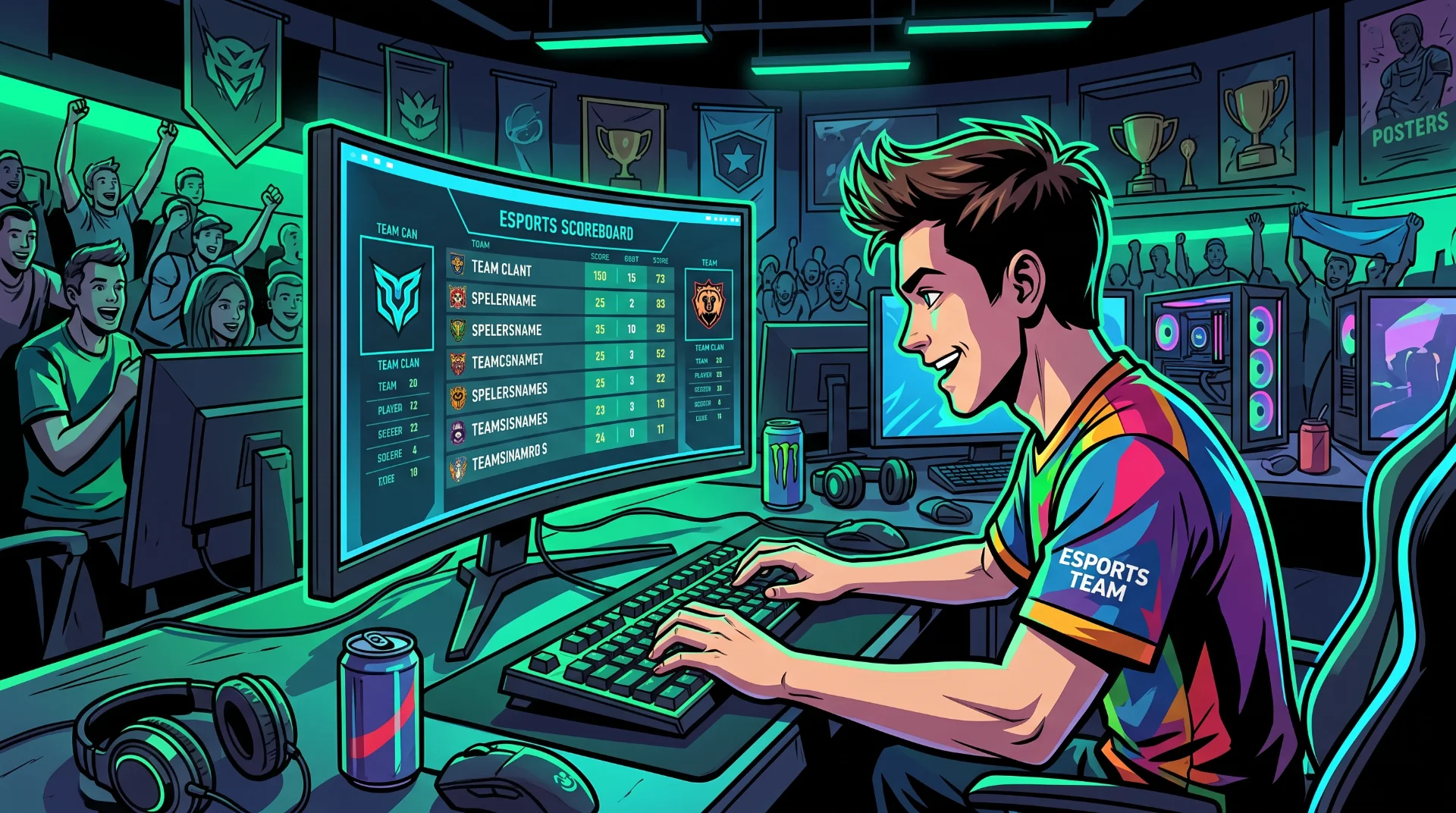
Squad Identity: How to Set and Display a Clan Tag in Counter-Strike 2
Displaying a unified clan tag next to your gamertag on the in-game scoreboard has been a Counter-Strike tradition for over twenty years. Whether representing an organized competitive amateur team, a collegiate esports squad, or a close-knit group of friends, having a matching prefix unifies your squad during matches.
However, when Valve transitioned the game from CS:GO to Counter-Strike 2 on the Source 2 engine, several legacy menu interfaces were redesigned or omitted entirely. A massive surge in search traffic—highlighted by queries like "как поставить клан тег в кс 2"—shows thousands of players struggling to find the clan tag setting.
Below is an operational walkthrough on linking your Steam Community Groups, enabling clan tags in modern CS2 matches, and fixing synchronization glitches.
Where Did the In-Game Menu Go?
In the legacy CS:GO client, players navigated directly to Game Settings > Team > Clan Tag to select an active prefix from a dropdown menu.
In Counter-Strike 2, Valve streamlined the menu and tied clan tags directly to your active Steam Community Group Primary Tag:
Clan Tag Synchronization Architecture:
[Create or Join Steam Group] ---> [Set Group as Primary in Steam Profile] ---> [CS2 Scoreboard Pulls Prefix Automatically]
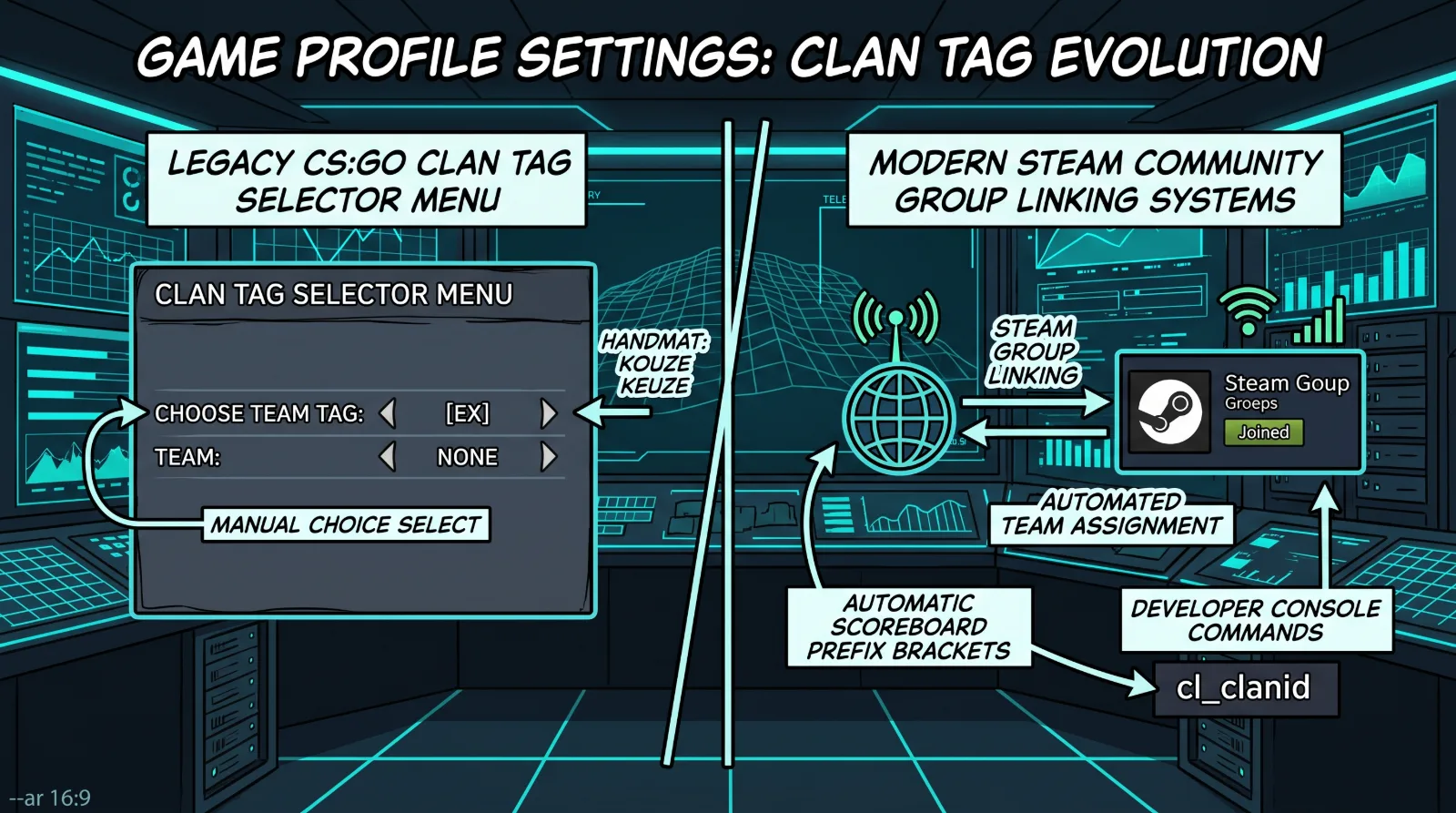
- Join or Create a Steam Group: Open the Steam desktop client, hover over your profile name, select Groups, and either join an existing gaming community or create a new public/private group with your desired clan abbreviation.
- Select Your Primary Group: Navigate to your full Steam Profile > Edit Profile > locate the Primary Group dropdown menu and select your target clan.
- In-Game Synchronization: Launch Counter-Strike 2. When you join competitive, Premier, or casual servers, the engine reads your Steam profile metadata and displays your clan tag within brackets beside your player name on the scoreboard.
Fixing Clan Tag Display Glitches in CS2
If your clan tag fails to populate on the active scoreboard:
- Profile Privacy Settings: Ensure your Steam Community profile and Game Details are configured to Public. If your profile is set to Private, server queries cannot pull your group affiliation data.
- Console Command Verification: Open your developer console (~) and enter the command
cl_clanid [GroupID]to force the client to bind directly to your specific group identification number. - Server Restart Sync: Changing your primary group while CS2 is actively running will not update until you restart the game client to refresh authentication session tokens.
Troubleshooting Memory Overflow Errors
Some players report encountering sudden client crashes labeled Overflow Error when loading heavily modded community servers:
- Verifying Game File Integrity: Right-click CS2 in Steam > Properties > Installed Files > click Verify integrity of game files to clear corrupted local sound cache archives.
- Maintain peak target acquisition across all competitive matches by utilizing verified tournament reticles from our news section.