Steam Cleaner Guide: Clear Shader Caches & Reclaim Massive SSD Storage Space
Is your high-speed SSD running out of storage without installing new games? Here is the complete technical guide to using Steam Cleaner, purging compiled shader caches, and deleting orphaned redistributables safely.

Storage Reclamation: Cleaning Bloated Drives with Steam Cleaner
Modern PC games demand extraordinary storage investments; installation packages spanning 80 to 150 gigabytes are now routine across major franchises. Yet many PC gamers notice their solid-state drives (SSDs) steadily losing available capacity even when they have not installed new software for months.
A persistent presence across hardware search trends is steam cleaner, representing queries dedicated to locating and purging the hidden cache files, installer packages, and orphaned files that Valve's client leaves behind.
From redundant DirectX runtime packages to gigabytes of forgotten shader caches, below is an engineering guide explaining where your lost gigabytes went and how to recover them safely.
Where Does the Phantom Storage Vanish?
Uninstalling a title via the Steam library does not always remove every file associated with that software:
- Redundant Visual C++ and DirectX Packages: Many titles download standalone Microsoft Visual C++ and DirectX installer archives into subfolders named
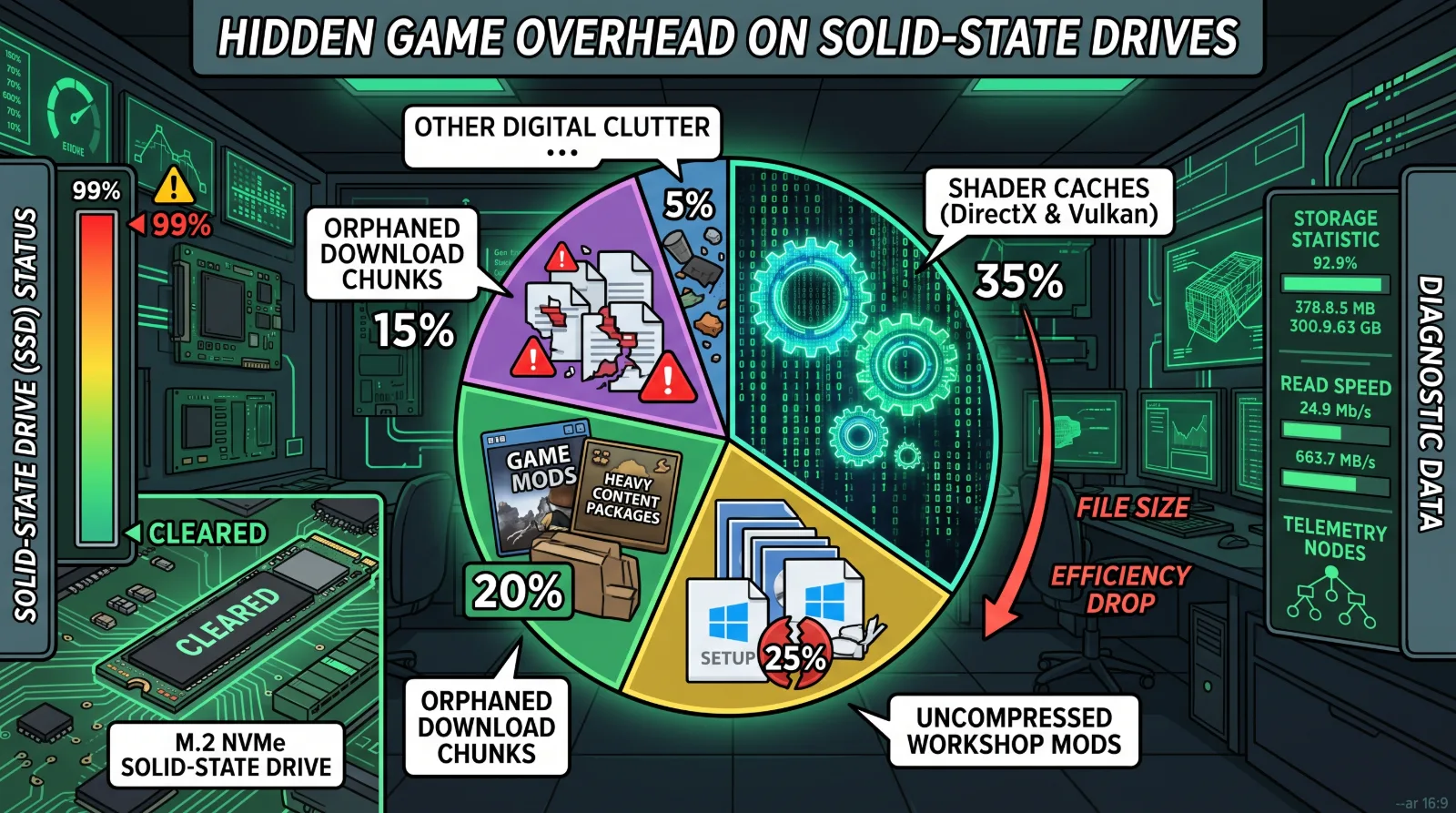
_CommonRedistorInstallers. Even if your Windows operating system already maintains current runtime packages, these redundant setup files often remain stored on your drive indefinitely. - Pre-Compiled Shader Caches: To eliminate in-game frame hitching, Steam downloads and compiles expansive graphics shader repositories tailored to your specific GPU. When you uninstall a game, these compiled binary archives can remain trapped within hidden system directories.
- Orphaned Download Chunks: When an update crashes, download connections drop, or the client is closed mid-stream, incomplete asset chunks linger inside Steam’s temporary staging folder.
What Does a Dedicated Steam Cleaner Tool Do?
Utilities such as open-source Steam Cleaner scan your designated library directories for redundant bloat:
They isolate installer archives that have already executed, clearing uncompressed .msi and .exe binaries without corrupting primary game assets. In libraries containing dozens of installed titles, running a cleaning pass frequently yields ten to twenty-five gigabytes of reclaimed storage space.
Manual Cleanup: Purging Caches in Windows
If you prefer not to deploy third-party utilities, you can locate and clear bloated folders manually:
Step 1 Clear the Main Shader Cache:
Navigate to your primary Steam installation path: C:\Program Files (x86)\Steam\steamapps\shadercache.
Step 2 Inspect Game Folders by AppID:
Within this directory, you will encounter numerous folders labeled with numerical strings corresponding to specific game AppIDs (verifiable via SteamDB). If a folder matches an AppID for a title you uninstalled long ago, you can delete that numerical folder to reclaim storage.
Step 3 Purge the Native Download Cache:
Launch Steam, navigate to Settings > Downloads, and click the Clear Download Cache button. The client will restart automatically, clearing temporary update buffers.
Inspecting Subscribed Workshop Modifications
Another major source of storage bloat is the Steam Workshop. Mods for sandboxes and tactical simulations (such as Garry's Mod, Cities: Skylines, or Arma) remain cached on your drive as long as your profile remains subscribed to them, even if you delete the primary base game. Unsubscribing from inactive workshop packages ensures your high-speed SSD maintains optimal read and write performance.