Steam Download Fix (No Internet Connection Error)
Browsing and Discord work fine, but Steam claims you have no connection or says content servers are unreachable? Here is the step-by-step fix covering DNS cache flushes, download region resetting, and IPv6 handshake conflicts.
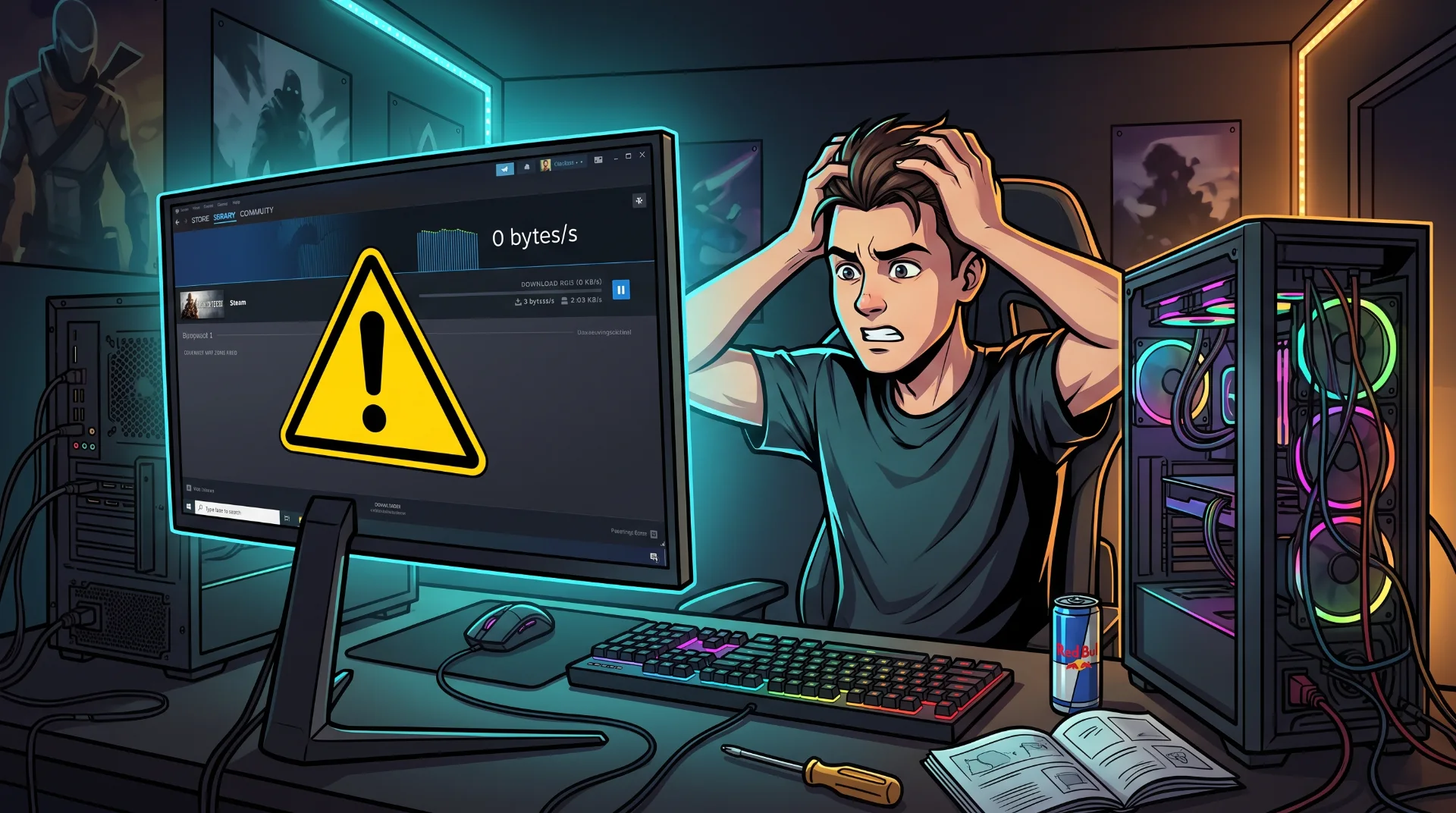
Network Desync: Resolving Steam’s Persistent Download Connection Errors
Few errors in PC gaming are as infuriating as launching Steam to patch an install, only to receive a pop-up declaring "No Internet Connection" or "Content Servers Unreachable" while your browser, Discord, and streaming services function flawlessly.
This desynchronization happens because Steam's content delivery network (CDN) relies on a unique combination of persistent HTTP/HTTPS sockets and high-concurrency UDP connections. When local Windows DNS caches become stale, IP helper configurations stall, or your selected Steam download server suffers silent routing degradation, the client fails its connection handshake and halts your queue entirely.
Rather than reinstalling Steam and losing hundreds of gigabytes of game libraries, follow this engineering-backed troubleshooting path to clear socket locks and restore full download bandwidth.
Rapid Troubleshooting Matrix: Which Fix Matches Your Error?
Identify your exact client symptom below before executing terminal commands:
| Visible Client Error | Underlying Technical Bottleneck | Most Effective Direct Solution |
|---|---|---|
| "No Internet Connection" (Downloads tab only) | Corrupted download cache / Stale local HTTP socket | Flush Steam Download Cache via client settings. |
| "Content Servers Unreachable" | Regional CDN node failure or ISP routing block | Shift Download Region to an adjacent tier-1 city. |
| Download drops instantly to 0 B/s | Disk write timeout or antivirus buffer inspection | Whitelist steamapps/downloading directory. |
| "Manifest Unavailable" / Missing file privileges | Windows socket stack desync or read-only lock | Execute netsh winsock reset in Command Prompt. |
Step 1:
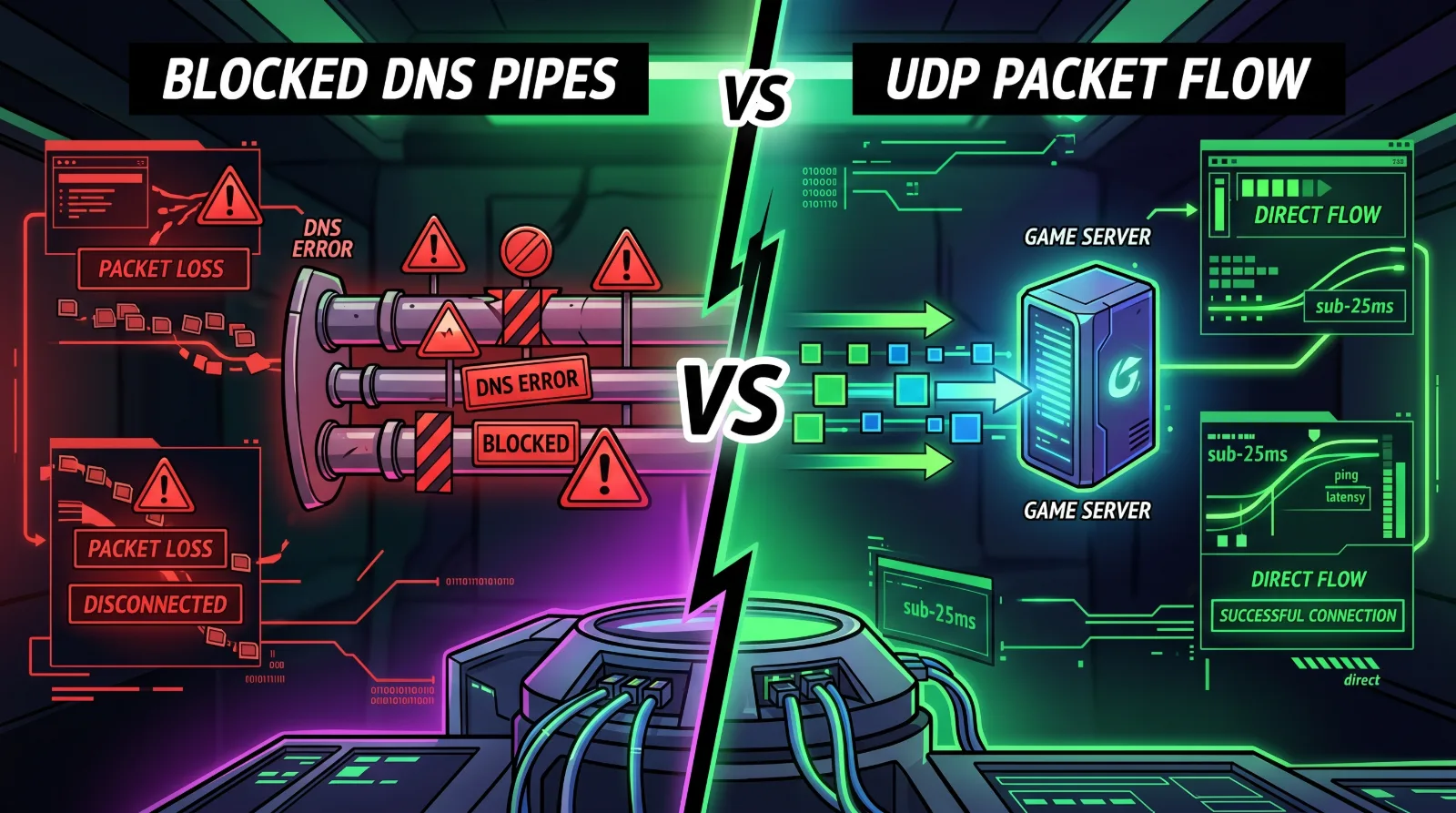
Force Flush the Steam Download Cache
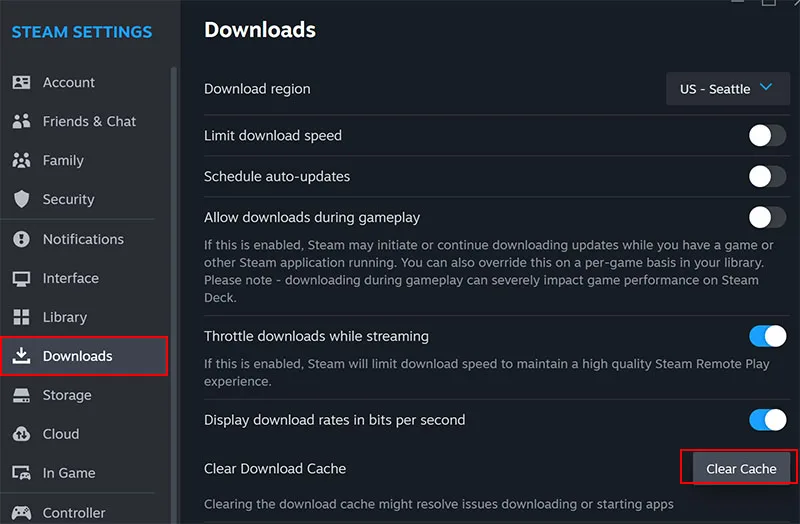
Over prolonged usage, Steam stores partial HTTP header manifests from game update depots. When an update checksum fails silently, the client refuses to query new data chunks:
- Launch Steam and click Steam in the top-left menu bar.
- Select Settings > navigate to the Downloads tab.
- Locate the Clear Download Cache button and click Clear Cache.
- Confirm the prompt. Steam will automatically close, purge temporary update tokens, and restart.
- Log back into your Steam credentials and resume your download queue.
Step 2: Shift Download Region to Bypass Dead CDN Clusters
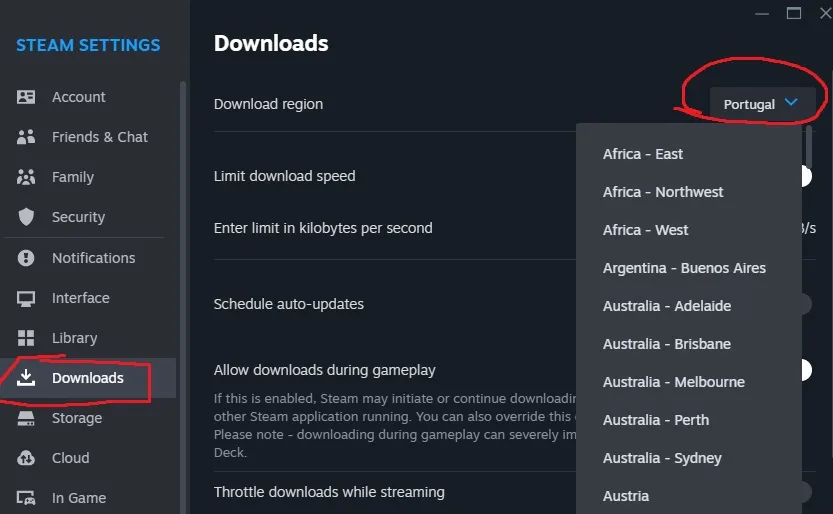
When Steam pushes heavy patches for titles like Counter-Strike or Apex Legends, localized distribution servers become saturated. Even if the server is offline, Steam's client can remain stubbornly locked to that node:
Steam Content Routing Flow:
[Client Request] ---> [Local ISP DNS] ---> [Overloaded Regional CDN] ---> (Timeout Drop to 0 B/s)
---> [Adjacent Regional Node] ---> (Full Fiber Bandwidth Restored)
- Navigate to Steam Settings > Downloads.
- Locate the Download Region dropdown.
- If you are set to your local domestic hub (e.g., Belgium or Netherlands), switch manually to an adjacent high-capacity hub like Germany - Frankfurt or UK - London.
- Restart Steam. Changing regions forces the client socket to bind to a fresh, unthrottled server pool.
Step 3: Flush DNS and Reset the Windows Winsock Catalog
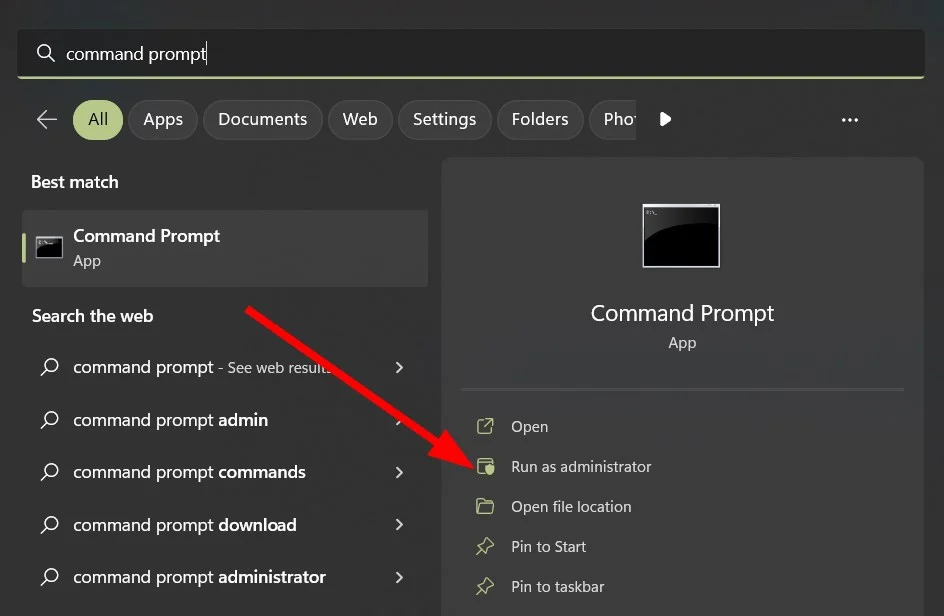
If third-party web browsers load sites normally but Steam’s internal Chromium Embedded Framework (CEF) and socket engines fail, your operating system network catalog is holding invalid routing maps:
- Press
Windows Key + S, type cmd, right-click Command Prompt, and select Run as Administrator. - Run these commands sequentially, pressing Enter after each line:
   ipconfig /flushdns
   ipconfig /registerdns
   ipconfig /release
   ipconfig /renew
   netsh winsock reset
Restart your PC. The Winsock catalog reset clears corrupted LSP (Layered Service Provider) entries that intercept Steam’s background traffic.
Step 4: Resolve the Hidden IPv6 & IP Helper Conflict
Modern Windows updates frequently route local loopback connections through IPv6 by default. However, many legacy gaming servers and regional CDN nodes struggle with IPv6 routing transitions, resulting in continuous download drops:
- Disable the Windows IP Helper Service.
- Press
Windows Key + R, type services.msc, and hit Enter. - Scroll down until you find IP Helper.
- Right-click IP Helper > select Properties.
- Change the Startup type to Disabled, then click Stop under Service status.
- Click Apply and OK. This forces Windows to route game traffic cleanly over optimized IPv4 paths.
Step 5: Whitelist Steam in Windows Defender Firewall
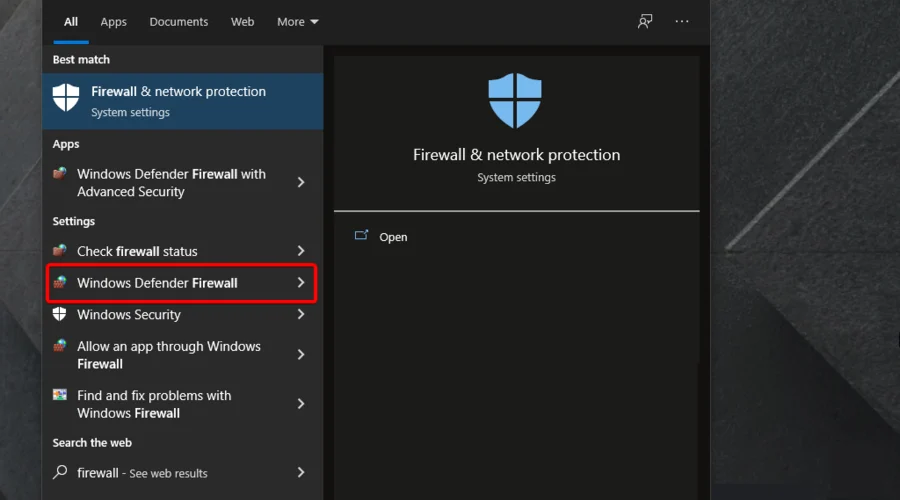
Security suites often inspect compressed file chunks mid-stream. If an active antivirus scan locks a downloading .chunk file while Steam tries to decompress it, the client assumes network connectivity dropped:
- Open Windows Security > Virus & threat protection.
- Click Manage settings under Virus & threat protection settings.
- Scroll down to Exclusions > click Add or remove exclusions.
- Add the folder path: C:\Program Files (x86)\Steam\steamapps\downloading.
- Under Firewall settings, confirm both steam.exe and steamservice.exe have full outbound and inbound permissions on Private Networks.
Verify real-time server cluster status through third-party telemetry tools or the official Steam Community status pages if regional ISP disruptions persist.