How to Fix Stuttering and FPS Drops in PC Games
Fix stuttering and FPS drops in PC games with a step-by-step guide to frame times, graphics settings, drivers, cooling, storage and latency.
Few PC problems are as distracting as a game that reports a high average frame rate but still feels uneven. A counter may show 100 FPS or more, yet camera movement hitches, fights feel delayed and new areas trigger sudden pauses. That usually means the real problem is not simply "low FPS." It is inconsistent frame delivery.
This guide explains how to diagnose stuttering, frame drops and input delay without randomly changing every setting on your PC. Work through the steps in order, test after each meaningful change and keep the fix that actually improves your frame times.
First: Identify the Problem You Actually Have
The words lag, stutter and low FPS are often used for the same feeling, but they point to different bottlenecks.
| Symptom | What it usually means | First thing to check |
|---|---|---|
| Constantly low FPS | The CPU or GPU cannot reach your target performance | Resolution, graphics settings and hardware usage |
| Short freezes or uneven motion | Frame-time spikes, asset streaming or background activity | Frame-time graph, storage and temperatures |
| Delayed mouse or controller response | Local system, display or peripheral latency | V-Sync, low-latency mode and refresh rate |
| Teleporting players or delayed hit registration | Network latency or packet loss | Ping, packet loss and connection stability |
| Slow downloads or Steam connection errors | Client, CDN, DNS or disk-write problem | Follow HEET.GG's Steam download and connection fix |
Do not troubleshoot an online connection problem by lowering texture quality. Likewise, a faster internet package will not solve a frame-time spike caused by an overheating CPU.
FPS and Frame Time: Why a High Average Can Still Feel Bad
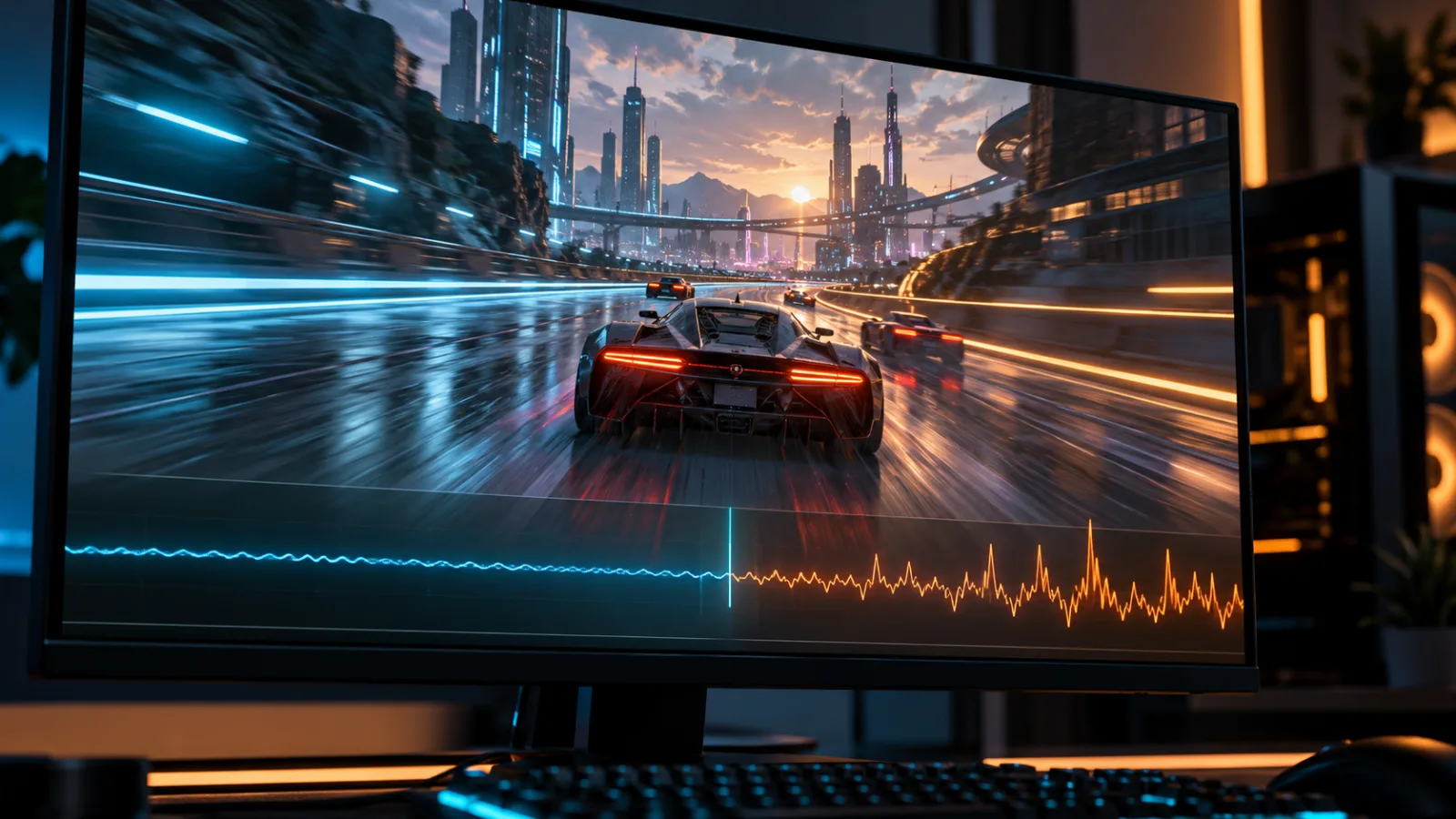
FPS counts how many frames the system produces in one second. Frame time measures how long each individual frame takes to appear. The two are connected:
Frame time in milliseconds = 1000 / FPS
At 60 FPS, each frame has about 16.7 milliseconds. At 120 FPS, that falls to about 8.3 milliseconds. A game can average 120 FPS while occasionally producing a 40 ms or 80 ms frame. Those isolated spikes are the hitches you feel.
Use an in-game performance overlay or a trusted monitoring tool that can show both FPS and a frame-time graph. Then reproduce the problem in the same location for a few minutes. A stable line matters more than a spectacular peak FPS number.
Before changing anything, note:
- Average FPS and the lowest visible dips
- Whether frame-time spikes happen at regular intervals
- GPU utilization and video-memory use
- CPU utilization per core, if available
- CPU and GPU temperatures
- Whether the problem appears online, offline or in both modes
This baseline prevents guesswork and gives you something to compare against.
1. Restart, Update and Isolate the Issue
Start with the reversible checks:
- Restart the PC instead of only closing and reopening the game.
- Install pending game updates and restart the launcher.
- Check the game's official status page if the issue only happens online.
- Test a second game with similar hardware demands.
- Temporarily close recording tools, browser video, hardware-monitoring overlays and RGB utilities.
If one game stutters while every other game remains smooth, focus on that game's files, shader compilation, settings or current patch. If several demanding games show the same problem, investigate drivers, temperatures, power settings, storage and hardware stability.
2. Verify the Game Files Before Reinstalling
Corrupted or incomplete files can cause crashes, missing assets and repeated loading problems. Most PC launchers include a repair or verification option.
In Steam:
- Open your Library.
- Right-click the game and select Properties.
- Select Installed Files.
- Choose Verify integrity of game files.
Verification is quicker and less disruptive than deleting the entire game. It also preserves most local settings. If Steam cannot download the replacement files, use HEET.GG's guide to fix Steam connection errors and stalled downloads.
3. Lower the Settings That Affect the Bottleneck
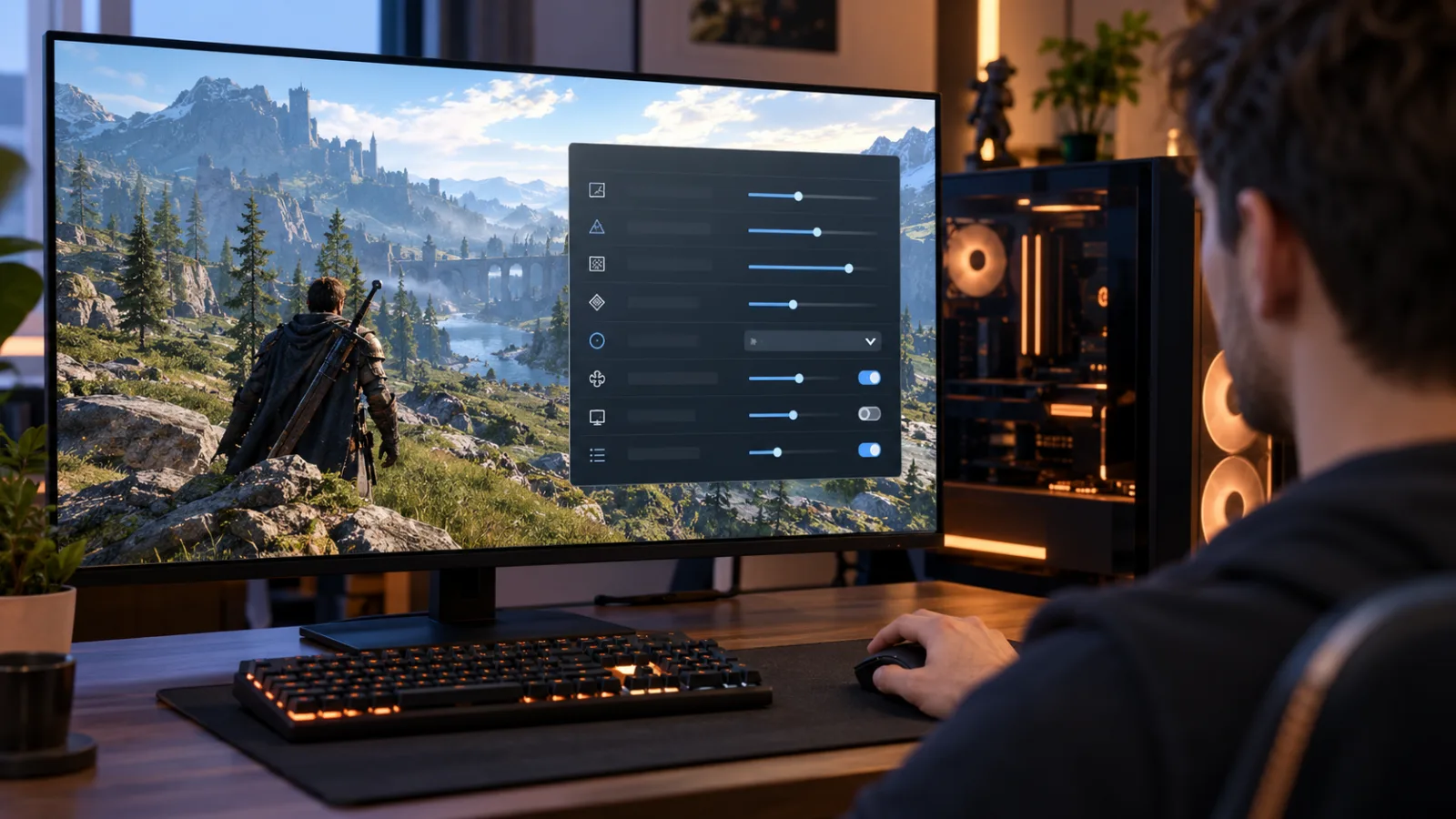
Dropping every option to Low is a poor diagnostic method. Change one group of settings at a time and watch the frame-time graph.
Reduce GPU Load
Start here when GPU utilization stays close to its maximum and performance improves at a lower resolution:
- Lower resolution or render scale
- Reduce ray tracing
- Lower shadow quality, volumetric effects and reflections
- Use a supported upscaler in its Quality or Balanced mode
- Set a sensible frame-rate cap that the PC can hold consistently
Texture quality mainly affects video-memory use. If the game exceeds the available VRAM, it may move data between system memory and the GPU, causing severe hitches. Lower textures one step when the VRAM indicator is full or the stutter appears while turning quickly through detailed areas.
Reduce CPU Load
Look here when the GPU is not fully used, one or more CPU cores are saturated, and lowering resolution barely changes FPS:
- Reduce crowd density, traffic, simulation or physics quality
- Lower view distance in large open-world games
- Reduce the number of background applications
- Cap FPS instead of forcing the CPU to render as many frames as possible
Minecraft has its own mix of render distance, simulation distance and memory behavior. Use the dedicated Lunar Client FPS and memory guide, or start with HEET.GG's Minecraft Bedrock performance guide for Bedrock Edition.
4. Check Refresh Rate, V-Sync and Variable Refresh Rate
A fast monitor can still run at 60 Hz if Windows is configured incorrectly. In Windows, open Settings > System > Display > Advanced display and select the intended refresh rate.
If your monitor supports variable refresh rate, enable the display's adaptive-sync feature and the matching option in the GPU software. VRR allows a compatible display to follow the game's changing frame rate, which can reduce visible tearing and judder inside the supported range.
V-Sync can remove tearing, but it may add latency or create uneven behavior when FPS repeatedly falls below the refresh target. There is no universal best combination for every game and display. Test one controlled setup at a time:
- For competitive games, prioritize stable FPS and the game's built-in low-latency option.
- For demanding single-player games, a stable cap with VRR often feels better than an unstable uncapped frame rate.
- If the game offers NVIDIA Reflex, use the in-game option instead of stacking several driver-level latency controls.
After performance is stable, keep your aim consistent between shooters with HEET.GG's mouse sensitivity converter.
5. Update the Graphics Driver Carefully
A graphics-driver update can add fixes and support for new games, but newer does not guarantee that one specific title will run better on every PC.
- Download the driver from NVIDIA, AMD or Intel.
- Close games and recording software.
- Install the driver and restart Windows.
- Retest the same scene with the same settings.
If stuttering started immediately after a driver update and affects several games, check the driver's known issues and consider returning to the previous stable release.
Avoid using multiple driver-cleaning tools as a routine step. A clean reinstall is a troubleshooting measure for a broken installation, not a performance ritual.
Some games compile shaders after a driver or game update. That can create temporary stutter during a first run. Let any visible shader-compilation process finish before judging performance. Do not repeatedly clear shader caches unless the game's support instructions specifically recommend it.
6. Stop Background Spikes and Overlay Conflicts
Background software can interrupt a game even when average CPU use looks low. Common tests include temporarily disabling:
- Unneeded browser tabs and video playback
- Cloud synchronization during gameplay
- Launcher downloads and automatic updates
- Third-party overlays
- Instant replay or continuous desktop recording
- Peripheral suites with animated lighting effects
Use Task Manager to sort processes by CPU, Memory and Disk while the stutter occurs. Do not disable Windows services blindly or install "game booster" software that makes undocumented changes.
The goal is to identify one process that spikes at the same moment as the hitch.
7. Check Temperature, Power and Airflow
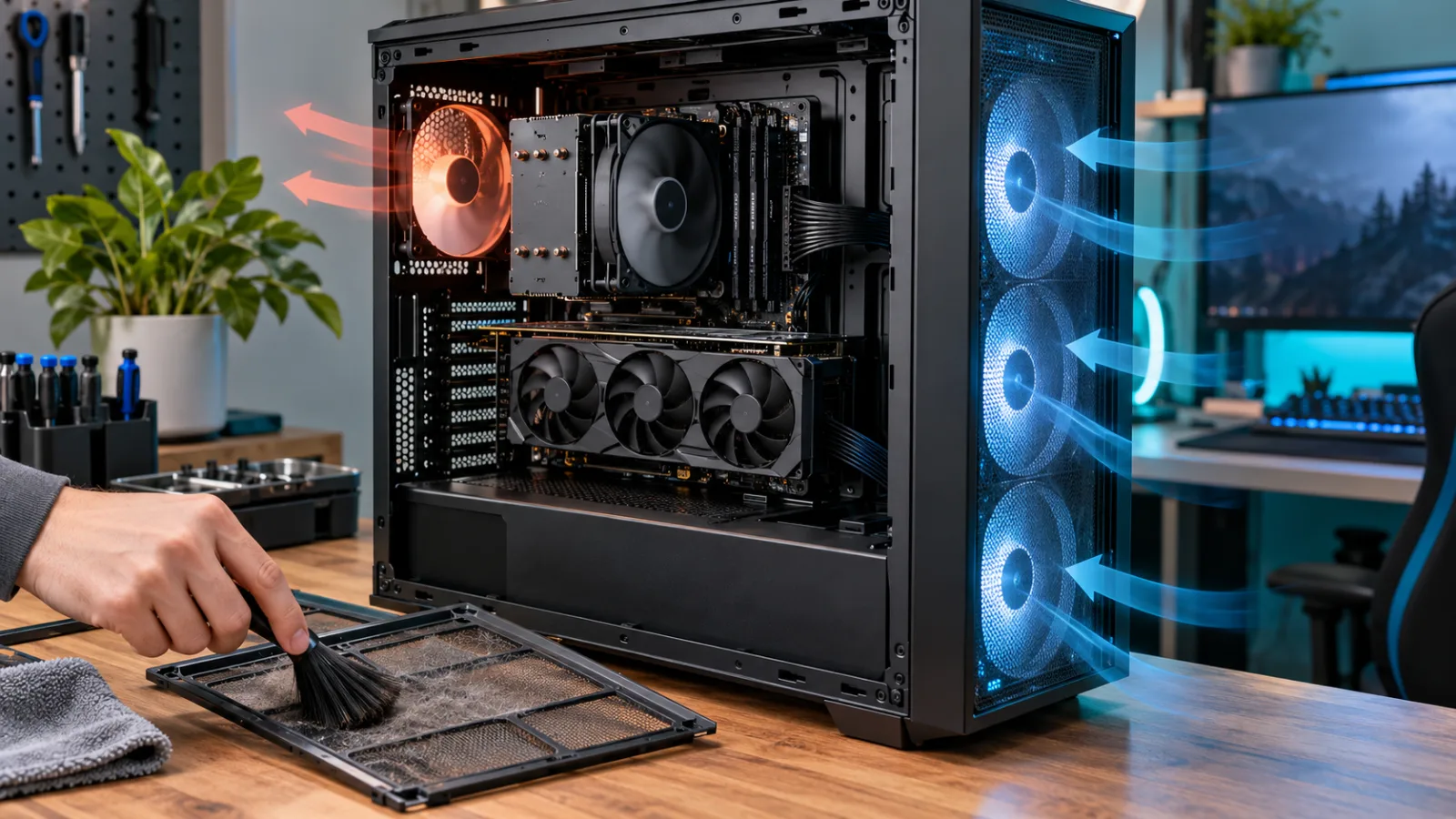
CPUs and GPUs reduce clock speed when they reach thermal or power limits. The result can be good performance at launch followed by falling FPS after several minutes.
Watch temperatures and clock speeds during a repeatable test. If clocks fall as temperatures rise:
- Clean dust filters and blocked vents
- Confirm that intake and exhaust fans spin correctly
- Give the case space to draw in and expel air
- Use the laptop's performance mode while connected to power
- Check that Windows and the GPU software are not using a power-saving profile
Do not assume every warm component is overheating. Compare readings with the limits published for your exact CPU, GPU or laptop model.
If a previously stable system suddenly runs much hotter, inspect fans, pump operation and cooler mounting before attempting an overclock.
8. Check RAM, VRAM and Storage Pressure
Games need enough memory, but unused RAM is not automatically a problem. Look for clear symptoms: memory use reaching the system limit, heavy paging, or stutter that begins after moving into a new area.
- Close memory-heavy background applications.
- Keep the Windows page file enabled unless the game's support team specifies otherwise.
- Lower texture quality when VRAM is exhausted.
- Install streaming-heavy games on an SSD when the developer recommends one.
- Keep free space available for patches, temporary files and shader caches.
If the game is on a hard drive and hitches whenever it loads new terrain, moving it to an SSD can help asset streaming. It will not meaningfully raise GPU-limited FPS in a scene that is already fully loaded.
9. Separate Input Latency From Network Lag
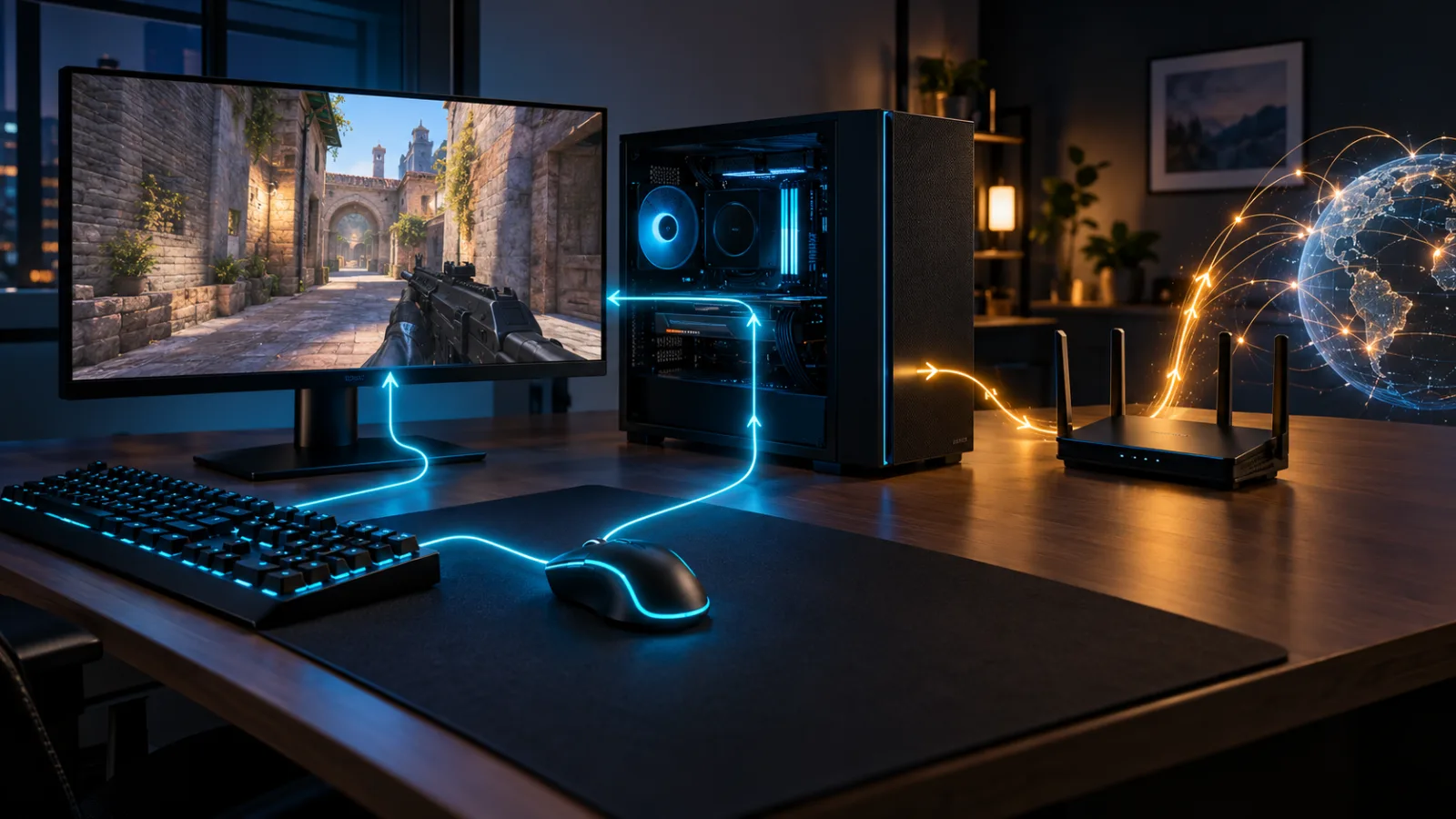
System latency is the time from an input to the resulting change on the display. Network latency is the travel time between your PC and the game server. They can feel similar, but they require different fixes.
For local responsiveness:
- Use the game's built-in low-latency mode when available.
- Confirm that the monitor is running at the intended refresh rate.
- Prefer a stable wired or low-latency wireless connection for the mouse or controller.
- Test V-Sync and frame caps instead of assuming uncapped is always best.
For online lag:
- Use Ethernet as a diagnostic test.
- Pause downloads and cloud backups on the local network.
- Select an appropriate server region.
- Monitor both ping and packet loss.
- Restart the router if multiple devices show connection problems.
Graphics settings may change how responsive a game feels locally, but they cannot repair packet loss between your router and a server.
A Reliable Troubleshooting Order
When a game begins stuttering, follow this order:
- Record a short baseline with FPS, frame time, utilization and temperatures.
- Restart the PC and close non-essential background software.
- Check for a game-specific outage, patch issue or shader-compilation process.
- Verify game files.
- Lower the settings tied to the observed CPU, GPU or VRAM bottleneck.
- Confirm refresh rate, VRR and low-latency settings.
- Update or roll back the graphics driver if the timing points to it.
- Check thermals, clocks, memory and storage behavior.
- Test another demanding game to decide whether the issue is game-specific or system-wide.
Change one major variable at a time. If you change the driver, graphics preset, power plan and background software together, you may improve performance without learning what fixed it.
Frequently Asked Questions
Why does my game stutter even at high FPS?
The average FPS can hide individual slow frames. A frame-time graph may reveal spikes caused by shader compilation, asset streaming, background processes, full VRAM, thermal throttling or a CPU bottleneck.
Should I cap my FPS?
A cap can improve consistency when your PC cannot hold an uncapped frame rate. Choose a target the system can maintain in demanding scenes, then compare frame-time stability and input feel. The best value depends on the game, hardware and display.
Does more RAM stop stuttering?
Only when the system is actually running short of memory or the game requires more. Extra unused RAM will not solve a GPU, CPU, driver or network problem.
Can an SSD improve FPS?
An SSD mainly improves loading and asset streaming. It can reduce traversal hitches in games that frequently load data, but it usually does not increase steady-state FPS when the CPU or GPU is the limiting factor.
Is low FPS the same as lag?
No. Low FPS is a local rendering problem. Online lag usually refers to high network latency or packet loss. Input latency is another separate delay between your action and the displayed result.
Final Checklist
A smooth PC gaming experience comes from consistent frame delivery, not just a large FPS counter. Measure first, identify whether the CPU, GPU, memory, storage, temperature or network is responsible, and apply the narrowest fix.
Once the game is stable, explore more HEET.GG strategy and fundamentals guides without fighting your hardware between rounds.