
Mouse Sensitivity Calculator: DPI, eDPI & cm/360
A mouse sensitivity calculator helps you preserve a familiar aim across games, DPI changes and new hardware. This guide explains eDPI, cm/360, Windows 11 pointer settings and a repeatable method for finding your best sensitivity.
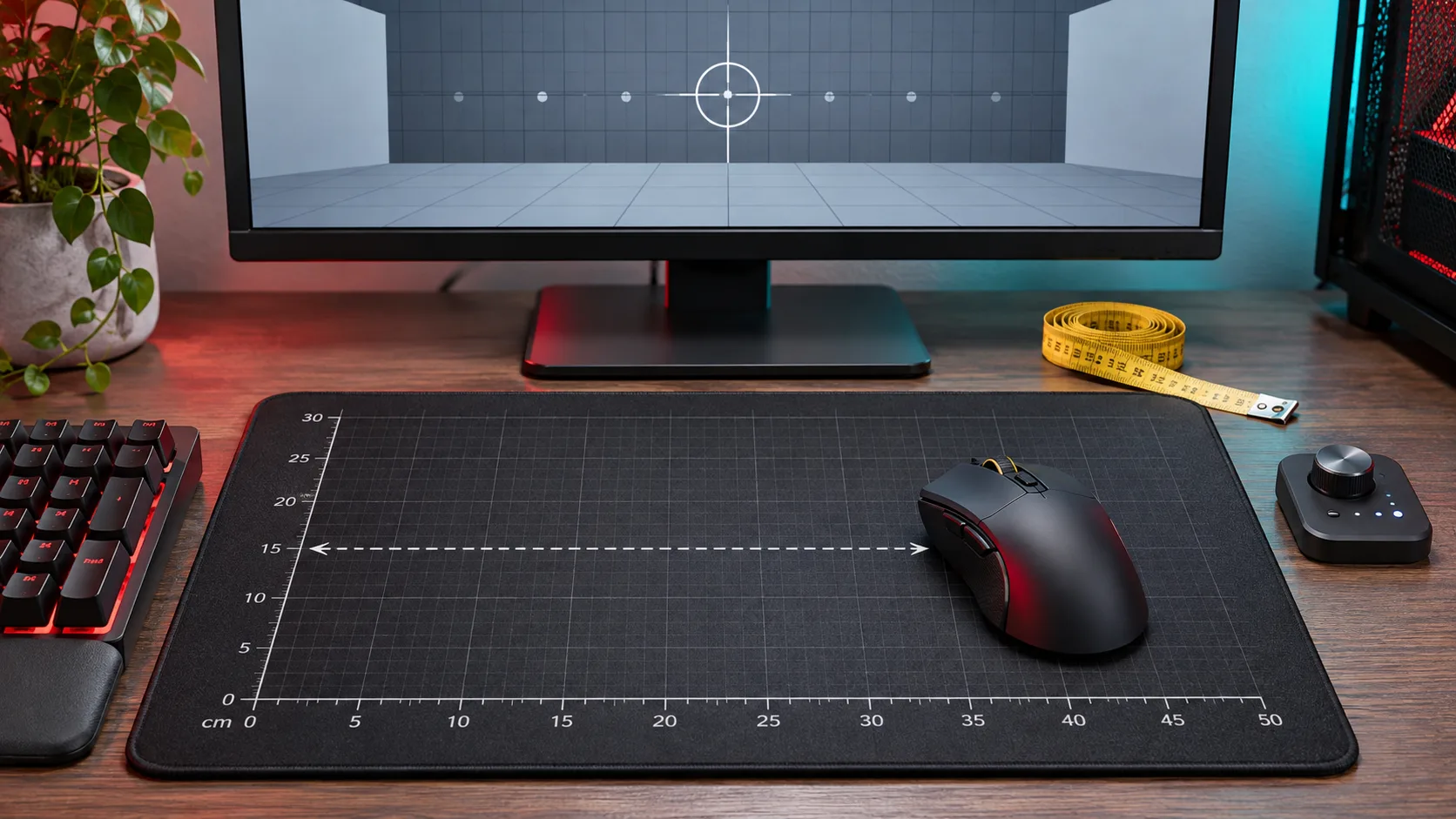
Table of Contents (31 sections) ▼
The fastest way to make your aim feel consistent is to stop copying sensitivity numbers blindly. A mouse sensitivity calculator combines your mouse DPI, in-game sensitivity and the target game's turning scale to produce a setting you can actually test.
Use the HEET mouse sensitivity converter when you want a direct game-to-game conversion. It supports multiple engines and also gives you useful measurements such as eDPI and cm/360. This guide explains what those numbers mean, how to calculate them and how to turn a converted value into a comfortable long-term setup.
Mouse sensitivity calculator: the quick answer#
For a conversion between two games:
- Select the game whose sensitivity already feels comfortable.
- Enter your current in-game sensitivity and mouse DPI.
- Choose the game you want to play.
- Copy the converted value into the target game.
- Check the result in a practice range and make only small adjustments.
Do not simply reuse the same sensitivity number in every game. Games can use different engine scales, yaw values, field-of-view rules and aim-down-sights multipliers. A value of 1.0 in one game can therefore produce a very different turn in another.
DPI, in-game sensitivity, eDPI and cm/360 explained#
These four measurements describe different parts of the same setup:
| Measurement | What it tells you | Best use |
|---|---|---|
| DPI | How many counts the mouse sensor reports per inch of physical movement | Setting your mouse hardware |
| In-game sensitivity | The multiplier applied by a specific game | Fine-tuning aim inside that game |
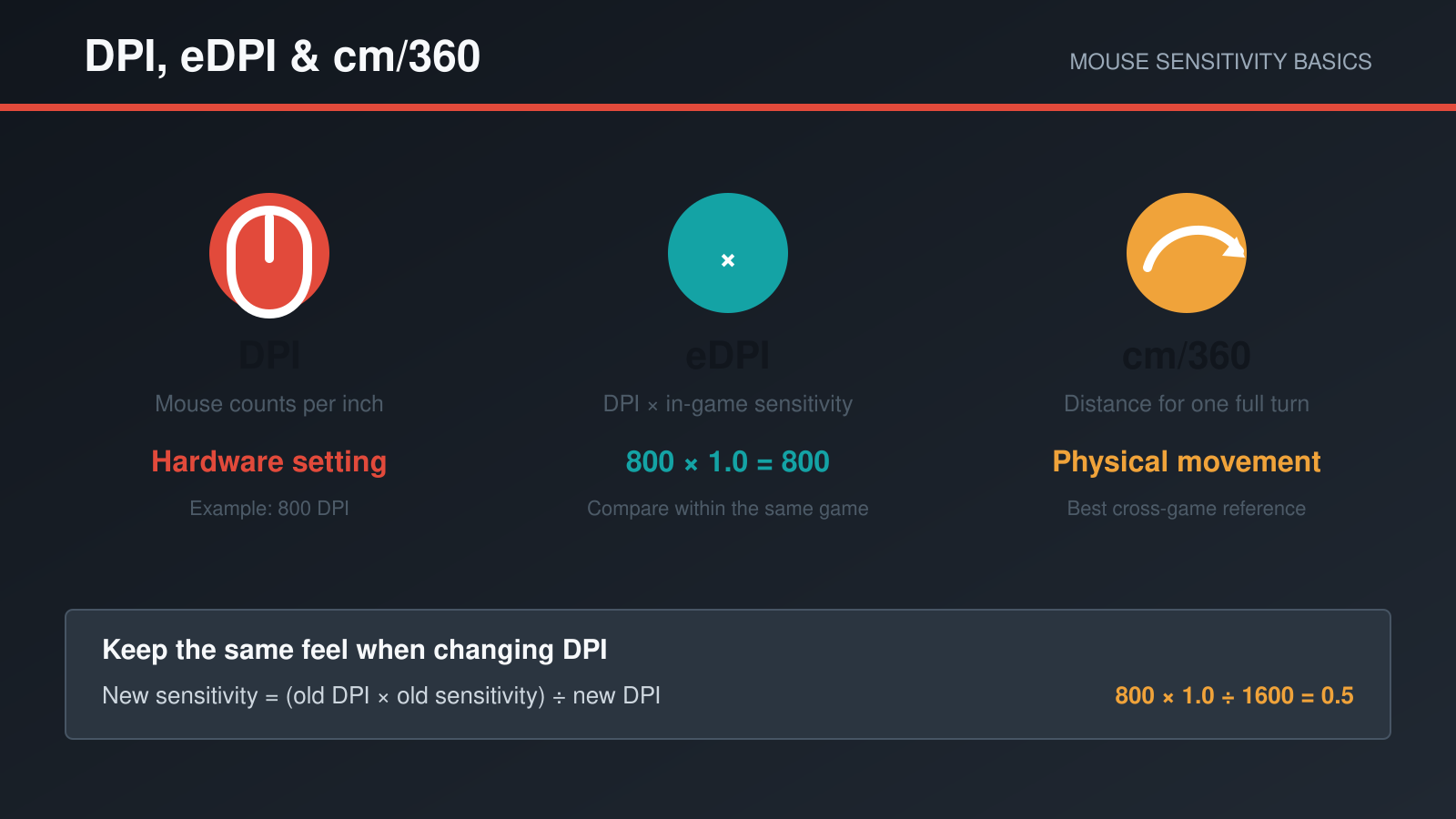
| eDPI | DPI multiplied by in-game sensitivity | Comparing players or setups within the same game |
| cm/360 | The physical distance needed to turn 360 degrees | Comparing the feel of different games |
What is DPI?#
DPI stands for dots per inch, although gaming mouse manufacturers may also use the more technically accurate term CPI, or counts per inch. A higher DPI makes the pointer or camera respond to less physical mouse movement when the other settings stay unchanged.
DPI alone does not tell you whether a setup is fast or slow. A player using 1600 DPI with a low in-game value can have the same effective sensitivity as someone using 800 DPI with a value twice as high.
What is eDPI?#
eDPI combines mouse DPI and in-game sensitivity:
eDPI = mouse DPI × in-game sensitivity
For example:
800 DPI × 1.0 sensitivity = 800 eDPI
1600 DPI × 0.5 sensitivity = 800 eDPI
Both examples produce the same eDPI inside the same game. This is useful when you change DPI or compare settings with another player in that title.
Do not use eDPI as a universal cross-game measurement. The formula does not account for differences between game engines. Two games can show the same eDPI and still require different physical mouse movement for a full turn.
What is cm/360?#
cm/360 is the number of centimetres you move the mouse to rotate the in-game camera by 360 degrees. A larger number means a lower sensitivity; a smaller number means a higher sensitivity.
The general relationship is:
cm/360 = (2.54 × 360) ÷ (DPI × in-game sensitivity × game yaw value)
The yaw value is specific to the game or engine. That is why a dedicated sensitivity converter is safer than applying one generic formula to every title.
How to keep the same sensitivity after changing DPI#
If you stay in the same game and only change DPI, use this formula:
new sensitivity = (old DPI × old sensitivity) ÷ new DPI
Suppose your current setup is 800 DPI and 1.0 sensitivity. You switch to 1600 DPI:
(800 × 1.0) ÷ 1600 = 0.5
Set the in-game value to 0.5 to preserve the same eDPI. This should retain the same basic turn distance in that game, provided no other mouse, acceleration or game settings changed.
How to convert sensitivity between games#
A useful conversion starts with one known-good baseline. Choose the game you play most and record:
- mouse DPI;
- hip-fire sensitivity;
- field of view;
- scoped or ADS multiplier, if relevant;
- whether raw input or mouse acceleration is enabled;
- your measured cm/360.
Enter the source settings in the HEET converter, select the target game and use the calculated value as your starting point. Test hip-fire first. Scope and ADS behaviour may use separate multipliers, focal-length scaling or FOV changes, so a perfect hip-fire conversion does not guarantee that every zoom level will feel identical.
Treat the output as a mathematically consistent baseline, not as a commandment. Animation, camera height, weapon movement, FOV and frame latency can change perceived speed even when the physical cm/360 matches.
How to measure cm/360 manually#
You can check a calculator result with a ruler or measuring tape:
- Open a quiet practice area and place the crosshair on a clear landmark.
- Put the mouse at a marked starting position on the pad.
- Move it horizontally until the camera completes exactly one full turn.
- Measure the distance between the start and end positions in centimetres.
- Repeat three times and use the average.
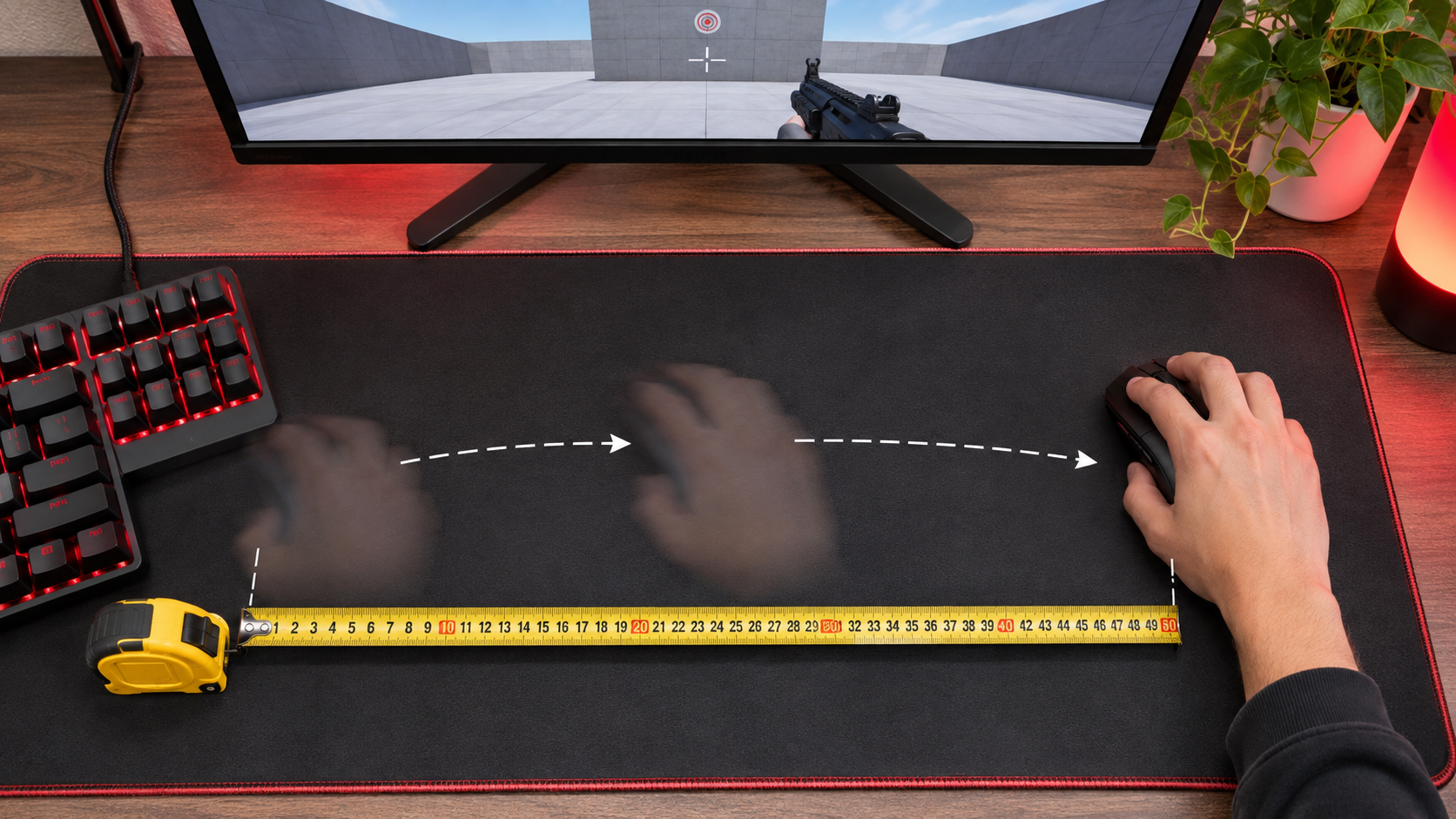
Keep the mouse path straight. If your pad is too small for a complete turn, measure 180 degrees and double the result. This manual test is also useful after a game update or hardware change, because it reveals whether the real movement still matches your saved setup.
How to find your best gaming mouse sensitivity#
There is no single best sensitivity for every player. Your useful range depends on the game, mousepad space, grip, role, mobility needs and whether you aim mainly with your wrist, arm or a combination of both.
Use this repeatable process:
1. Start with a controllable baseline#
Choose a value that lets you turn around without repeatedly lifting the mouse, but still gives you enough control to hold a small target. If you run out of pad during ordinary movement, the sensitivity is probably too low for your available space. If every correction overshoots, it is probably too high.
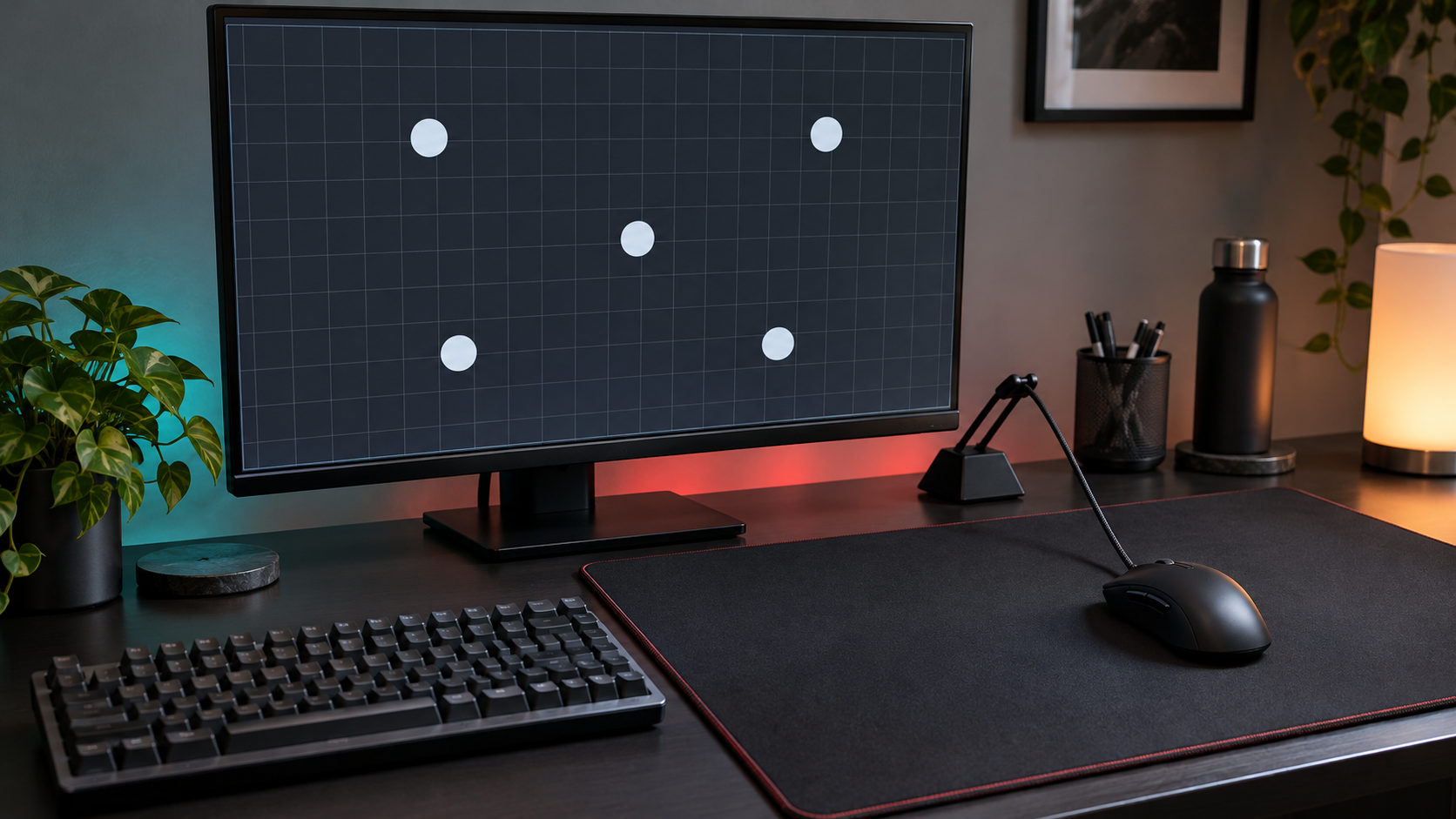
2. Test tracking and flicking separately#
Tracking reveals whether you can make smooth corrections while a target moves. Flicking reveals whether your first movement consistently stops on the target. Test both; a setting that looks impressive in one drill may be unstable in the other.
3. Adjust in small steps#
Change the value by roughly 5% to 10%, then repeat the same drills. Large jumps make it difficult to tell whether the new setting is genuinely better or merely unfamiliar.
4. Keep the setup stable for several sessions#
Do not replace your sensitivity after every poor match. Use the same value for several focused sessions and note recurring problems. Consistent overflicking is useful evidence; one bad round is not.
5. Save the result#
Record the game, DPI, sensitivity, cm/360, FOV and ADS values. A simple record makes it far easier to recover your aim after reinstalling a game, changing a mouse or testing another title.
How to change mouse sensitivity in Windows 11#
In Windows 11, open:
Start > Settings > Bluetooth & devices > Mouse
Use Mouse pointer speed to change desktop pointer movement. For more options, open Additional mouse settings, then choose the Pointer Options tab.
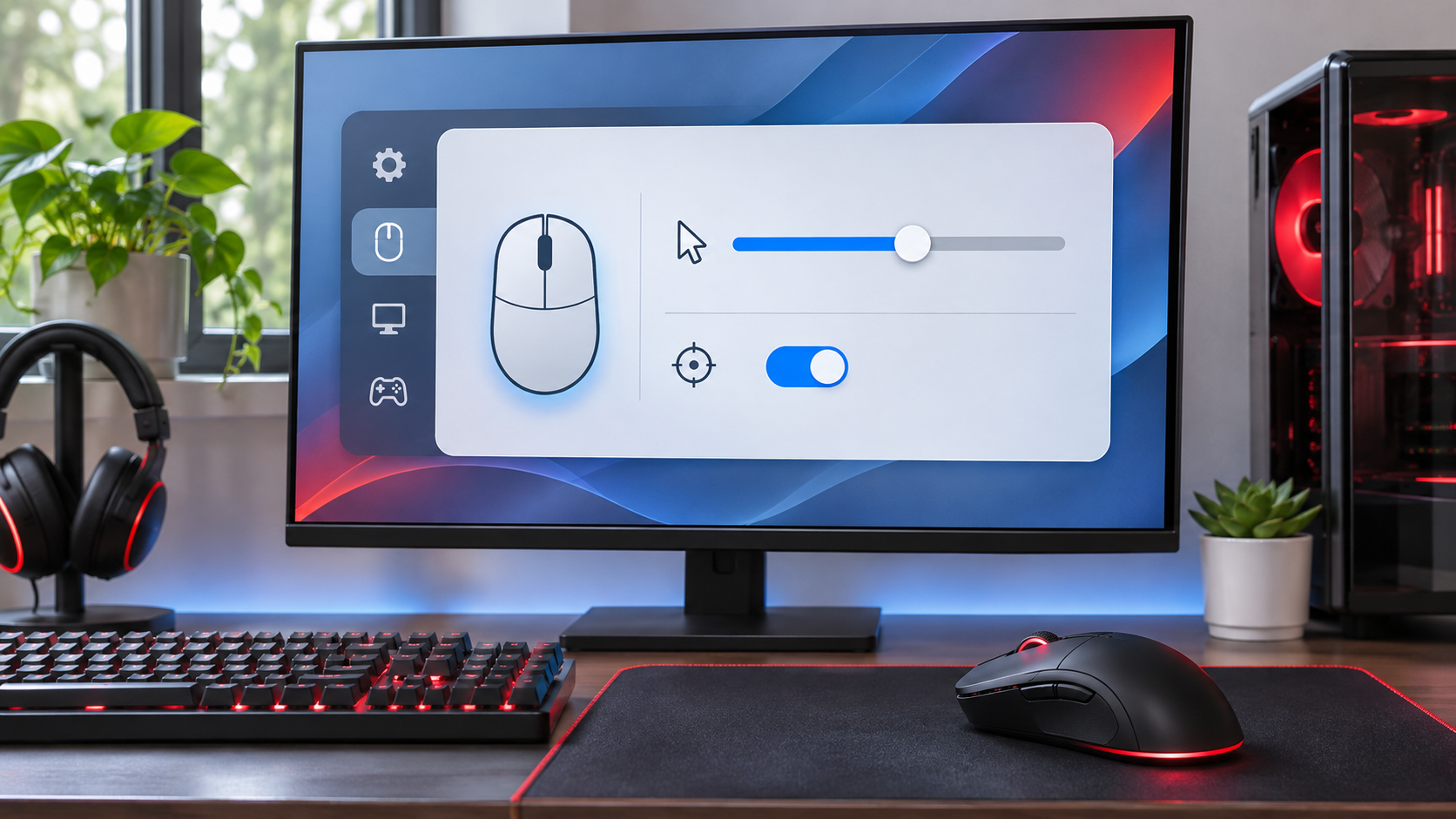
Windows also offers Enhance pointer precision, which changes pointer behaviour according to movement speed. Many competitive players disable it to keep desktop input more predictable. However, games that use raw mouse input may bypass some Windows pointer processing, so check the individual game's input behaviour rather than assuming every title responds in the same way.
Your mouse DPI is normally changed through a hardware button or the manufacturer's configuration software, not the Windows pointer-speed slider. Save the chosen DPI to onboard memory when your mouse supports it, and disable unused DPI stages if you regularly press the switch by accident.
Signs your sensitivity is too high#
Your sensitivity may be too high when you:
- repeatedly overshoot targets;
- struggle to hold a long-range angle;
- make shaky micro-corrections;
- lose control during sustained tracking;
- tense your fingers or wrist to stop the mouse.
Lower the in-game value by a small amount and retest the same scenario. Avoid changing DPI and in-game sensitivity at the same time, because that makes the cause of any improvement unclear.
Signs your sensitivity is too low#
Your sensitivity may be too low when you:
- run out of mousepad during common turns;
- need frequent lifts and resets;
- react too slowly to targets outside your initial view;
- struggle with close-range movement;
- feel excessive shoulder fatigue during normal play.
Increase the value gradually, or create more usable desk space before abandoning a sensitivity that otherwise feels precise.
Common mouse sensitivity mistakes#
Copying a professional player's number without matching DPI#
An in-game value is incomplete without DPI. 0.5 at 800 DPI and 0.5 at 1600 DPI are not the same setup.
Comparing eDPI across different games#
eDPI is valuable inside one game. Use cm/360 or an engine-aware converter when moving between games.
Changing several variables at once#
If you change DPI, Windows speed, in-game sensitivity and FOV together, you cannot identify what helped. Change one variable, test it and record the result.
Ignoring ADS and scope multipliers#
Hip-fire can feel correct while scoped aim feels wrong. Configure zoom levels after establishing the base sensitivity, and test them at the distances where you actually use them.
Treating a converter result as the final answer#
A calculator preserves a mathematical relationship. Your best setting still needs a practical check for pad space, comfort and the target game's camera behaviour.
Frequently asked questions#
What is a good DPI for gaming?#
There is no universal best DPI. Common settings such as 800 or 1600 are useful starting points because they are widely supported and easy to convert, but the combined result matters more than DPI alone. Choose a stable native setting your mouse handles well, then tune the in-game value.
Is eDPI the same in every game?#
No. eDPI does not include the game's yaw scale, so it should normally be used for comparisons within the same title. Use cm/360 or a cross-game converter for different games.
Can I find my DPI without mouse software?#
Check the mouse model's documentation and available DPI stages first. Online DPI analyzers can estimate the value from measured cursor movement, but measurement error and Windows settings can affect the result. Manufacturer software or an onboard DPI indicator is more reliable when available.
Should Enhance pointer precision be on or off for gaming?#
For consistent desktop movement, many competitive players turn it off. Some games use raw input and may not be affected in the same way. Test the setting in the game you play and keep the final configuration consistent.
Why does the same cm/360 feel different in another game?#
Field of view, aspect ratio, camera animation, weapon movement, zoom scaling, acceleration and latency all affect perception. Matching cm/360 preserves physical turn distance, but it cannot make two different camera systems visually identical.
How often should I change my sensitivity?#
Change it when there is a repeatable problem, a hardware change or a different gameplay requirement. Do not change it simply because one session went badly. Stable practice produces better evidence than constant experimentation.
Build a sensitivity you can reproduce#
A good sensitivity is not a mysterious pro setting. It is a documented combination of DPI, in-game sensitivity, cm/360 and game-specific behaviour that fits your space and remains comfortable under pressure.
Start with the HEET mouse sensitivity calculator, verify the result on your mousepad and save the final numbers. You can also explore the other HEET gaming tools or use our CS2 settings guide when you want a game-specific setup for visibility, performance and input consistency.
HEET Precision Tools Hub
Sharpen your mechanical gameplay with our suite of esports utilities. Benchmark your reaction time, replicate professional player crosshair codes, and convert mouse sensitivity across games.