
How to Fix Gaming Lag: Reduce Ping, Jitter and Packet Loss
Gaming lag is not always caused by slow internet. This guide shows you how to identify high ping, jitter and packet loss, test your connection, and apply the fix that matches the actual problem.
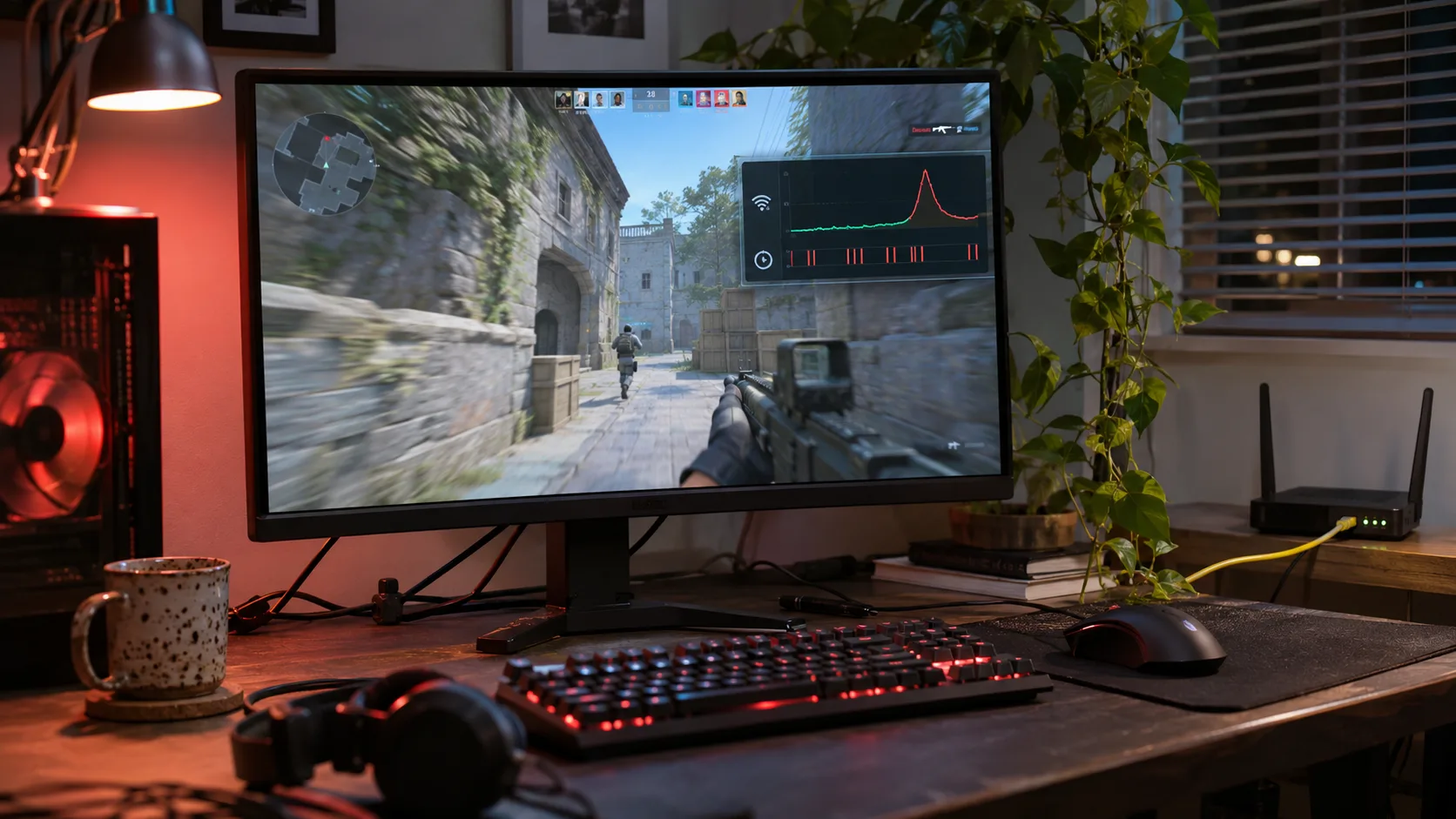
Table of Contents (39 sections) ▼
To fix gaming lag, first identify whether the delay comes from your network or from the PC or console itself. Teleporting players, delayed hit registration and rubber-banding usually point to latency, jitter or packet loss. Choppy camera movement with stable network statistics is more likely to be a frame-rate or frame-time problem.
The fastest useful test is simple: pause downloads and streams, select the nearest game server, play the same match over Ethernet, and compare the in-game network statistics. If the lag disappears, your local Wi-Fi or household traffic is involved. If it remains in one game only, check that game's server status and region. If it affects several games and devices, investigate the router, modem or ISP connection.
The 10-minute gaming lag checklist#
Work through these steps in order before changing advanced settings:
- Turn on the game's ping, latency or packet-loss display.
- Confirm that you selected the nearest practical server region.
- Pause game downloads, cloud backups, livestream uploads and high-resolution video streams.
- Check the publisher's official server-status page.
- Connect the gaming device directly to the router with Ethernet, if possible.
- Restart the game and gaming device.
- Power-cycle the router and modem according to the manufacturer's instructions.
- Repeat the same game mode and server test.
- Test a second online game on the same device.
- Test another device on the same network.
Do not make five changes at once. A controlled comparison tells you which part of the connection actually improved.
First, identify what "lag" means in your game#
Players often use lag to describe every kind of delay, but different symptoms require different fixes.
| Symptom | Most likely area | First check |
|---|---|---|
| Players teleport, shots register late or the game rubber-bands | Network latency, jitter or packet loss | In-game network statistics |
| Ping rises when someone streams, downloads or uploads | Household congestion or queueing | Pause other traffic and repeat the match |
| Lag changes when you move closer to the router | Wi-Fi signal or interference | Compare Wi-Fi with Ethernet |
| Only one game or region is affected | Game server, route or regional outage | Official status page and another region |
| The image stutters in online and offline modes | CPU, GPU, storage or frame-time problem | FPS and frame-time graph |
| Controls feel delayed but the world does not teleport | System, display or peripheral latency | Refresh rate, V-Sync and input setup |
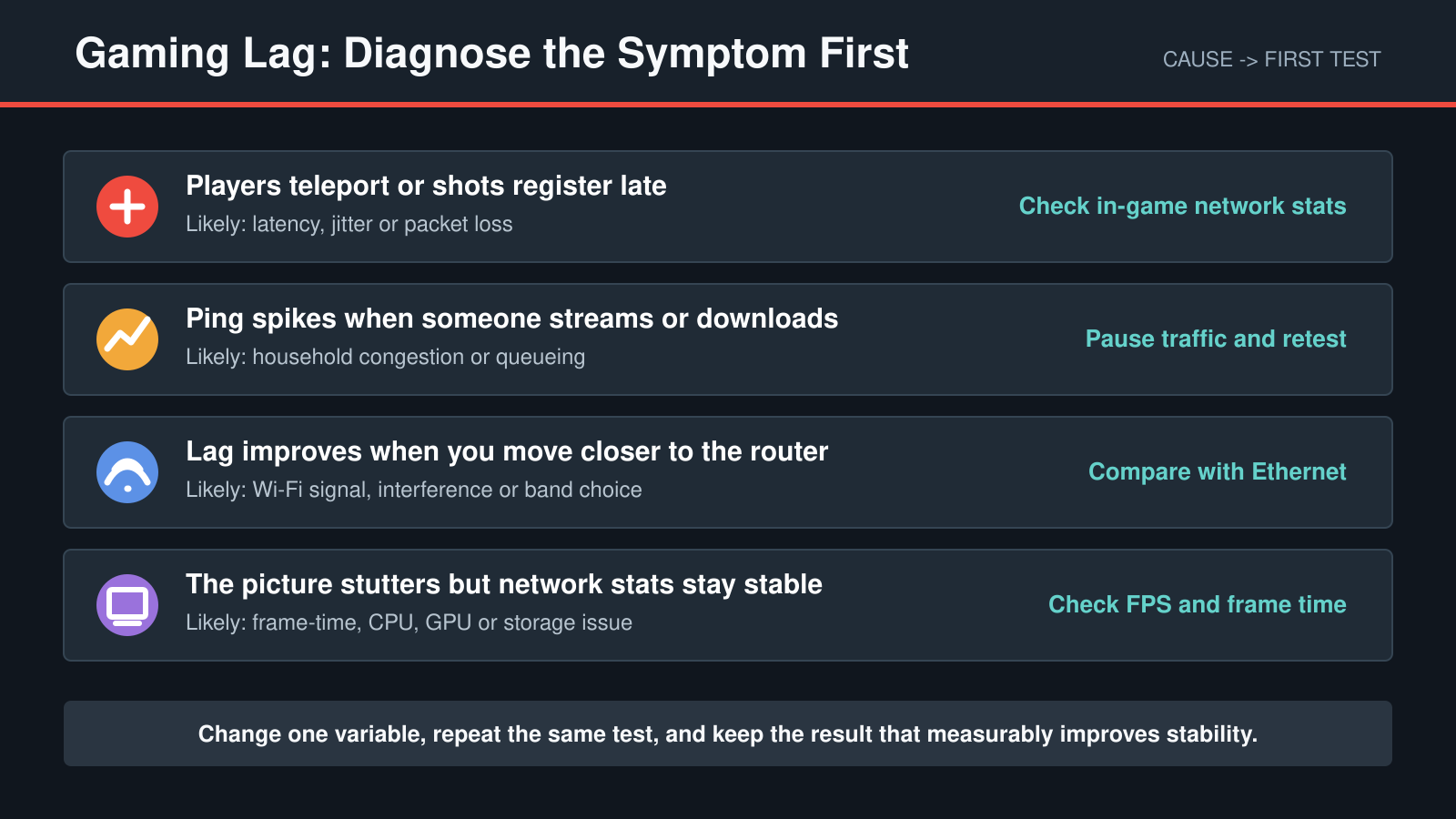
If the problem is local rendering rather than the network, follow HEET's guide to fixing stuttering and FPS drops. Lowering graphics settings cannot repair packet loss, while changing DNS cannot fix an overloaded GPU.
Ping, latency, jitter and packet loss explained#
These measurements describe different parts of connection quality.
Ping and latency#
Latency is the time data takes to travel between your device and a destination and return. Games normally display that round-trip time as ping in milliseconds. Lower is generally better, but there is no single number that guarantees a good experience in every game. Server distance, routing, netcode and lag compensation all matter.
A stable 45 ms connection can feel better than one that repeatedly jumps between 20 ms and 120 ms.
Jitter#
Jitter is the variation in latency over time. High jitter means packets do not arrive at a consistent rhythm. That instability can produce uneven movement, delayed updates or short bursts of rubber-banding even when the average ping appears acceptable.
Packet loss#
Packet loss occurs when some data sent between your device and the game server does not arrive. Intel and Steam both note that it can cause erratic lag, delayed updates and rubber-banding. A fast download connection can still suffer packet loss.
Zero packet loss is the target. Epic's Fortnite support warns that consistent loss above roughly 1% can cause in-game problems, but the visible effect depends on the game and how it handles missing updates.
Loaded latency#
Loaded latency measures how much delay rises while the connection is busy. If ping is stable on an idle network but spikes when another device uploads video or downloads a game, the issue may be congestion or excessive queueing in the router. A large speed-test result does not rule this out.
How to test gaming ping and packet loss in Windows#
The game's own network display is the most relevant first measurement because it observes the actual session. A Windows ping test is still useful for separating a local network problem from a wider connection problem.
1. Find your router address#
Open Command Prompt and enter:
ipconfig
Find Default Gateway for the active adapter. A common home-router address looks like 192.168.1.1, but use the value shown on your system.
2. Test the local connection to the router#
Replace the example address with your own gateway:
ping 192.168.1.1 -n 30
This test stays inside your home network. Packet loss or large time variations here point toward Wi-Fi conditions, a cable, a network adapter or the router itself.
3. Test an internet destination#
Run a second comparison against a stable public endpoint:
ping 1.1.1.1 -n 30
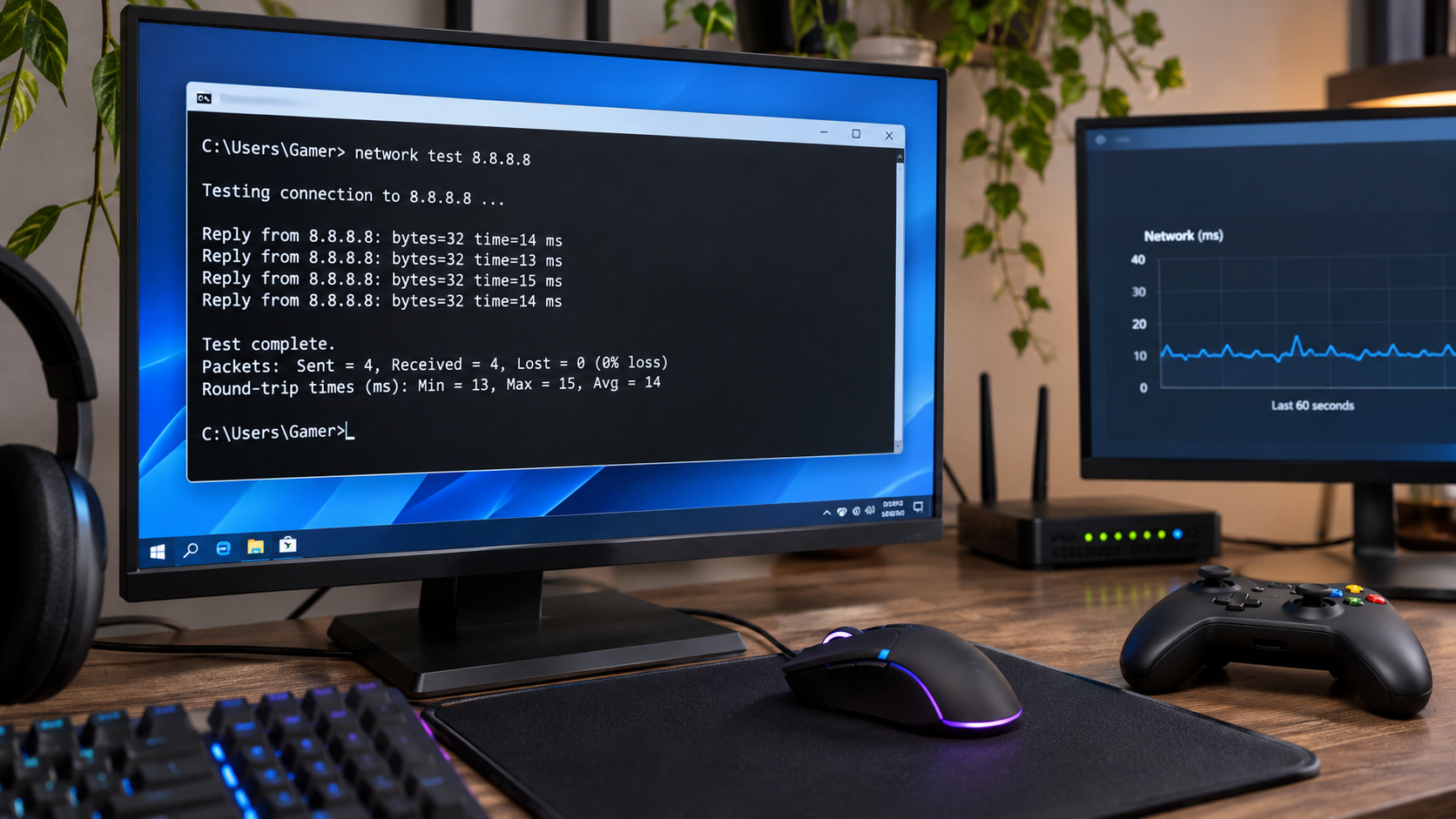
Compare the minimum, maximum and average times, plus the reported packet loss. Test once while the network is quiet and again while reproducing the conditions that trigger lag.
This is a diagnostic clue, not a perfect simulation of the game. Epic notes that a command-line ping uses ICMP while gameplay may use UDP, and networks can treat those packets differently. A clean public ping therefore does not prove that the route to a particular game server is healthy.
4. Use the game's endpoint when officially provided#
Some publishers document regional ping endpoints or built-in network graphs. Prefer those official tools because they target infrastructure related to the game. Do not copy unknown server addresses from random forum posts.
5. Use pathping only when you need a deeper trace#
Windows includes pathping, which combines route and packet-loss information:
pathping 1.1.1.1
Intermediate routers may limit or ignore diagnostic traffic, so an apparent loss on one hop does not automatically prove that hop is dropping game traffic. Focus on persistent end-to-end symptoms and provide the full result to your ISP or the game's support team rather than blaming one line in isolation.
1. Select the closest suitable game server#
Physical distance and network routing affect round-trip time. Choose the nearest region that still provides the mode, party compatibility and matchmaking population you need.
Do not assume the region with the shortest label is always fastest. Use the game's displayed ping or official region test. If a game automatically selects a distant region, set a preferred region when the option exists.
When only one region is slow, your home network may be fine. The cause can be the route between your ISP and that data center, regional congestion or a server-side problem.
2. Compare Ethernet with Wi-Fi#
Ethernet is the most useful single comparison because it removes Wi-Fi distance, walls, radio interference and channel contention from the test. Microsoft recommends a direct wired comparison when diagnosing Windows connection problems, and Intel lists Ethernet as a basic packet-loss troubleshooting step.
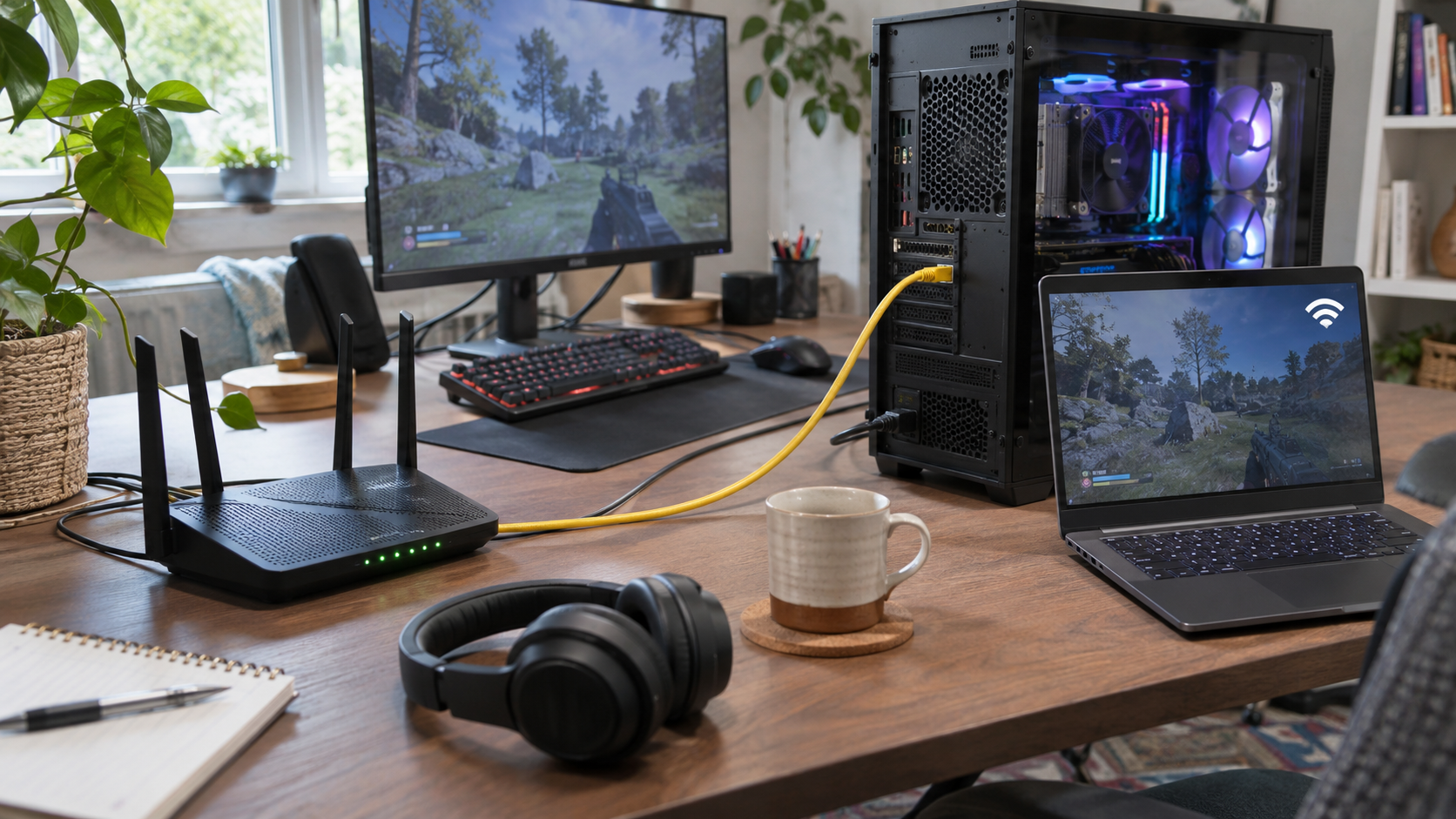
Connect directly to the router, repeat the same game and region, and compare ping stability and packet loss. If the problem disappears over Ethernet, focus on Wi-Fi rather than the ISP package.
If Ethernet is impractical, improve Wi-Fi systematically:
- move closer to the router for a comparison;
- place the router in an open, elevated position rather than inside a cabinet;
- test both available bands, because 5 GHz can be faster at shorter range while 2.4 GHz can reach farther but may be more crowded;
- avoid placing the router behind a PC case, television or large metal object;
- update the router firmware using the manufacturer's instructions;
- check whether a mesh access point or wired backhaul is more appropriate for the distance.
Do not buy a new router before proving that Wi-Fi is the failing segment.
3. Stop background downloads and uploads#
Game patches, cloud synchronization, video calls, livestreaming and backups can compete with real-time game traffic. Upload saturation is especially easy to miss because many home connections provide much less upload capacity than download capacity.
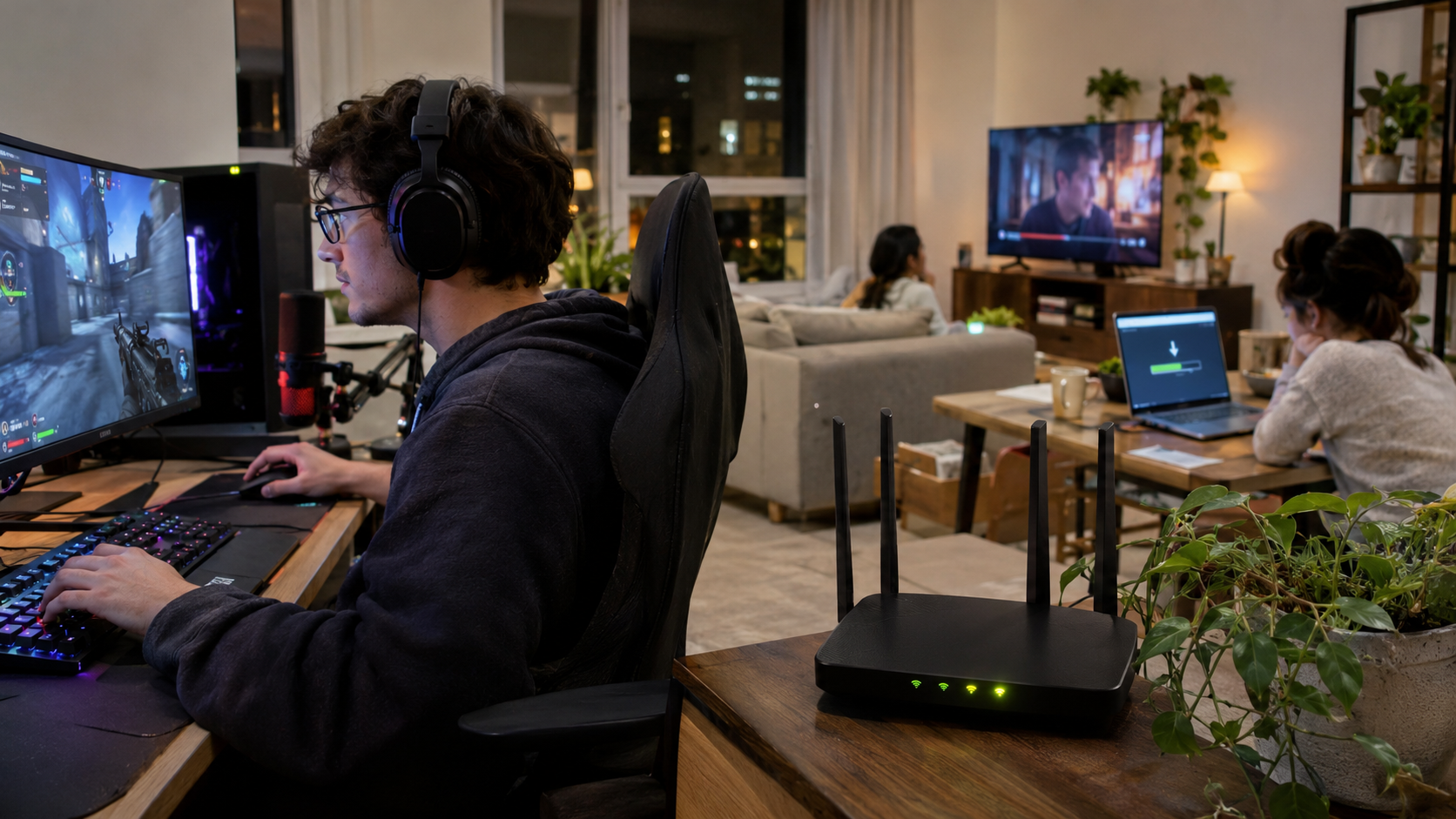
Pause the following during a test:
- launcher and operating-system updates;
- cloud photo or file backups;
- torrents and large file transfers;
- 4K video streams;
- livestream uploads and remote camera backups;
- another cloud-gaming session on the same connection.
If the lag vanishes, re-enable one activity at a time. The goal is to identify the load that triggers the spike, not to ban every other device from the network permanently.
4. Restart the network equipment correctly#
A restart can clear a temporary fault, renew a connection and restore a router that has become unstable. Follow the modem or router manufacturer's instructions. If you have separate devices, allow the modem to reconnect fully before bringing the router back online.
A restart is a test, not a long-term fix. If you must reboot the router every day, record the timing and contact the manufacturer or ISP. Repeated instability may indicate firmware, heat, line or hardware problems.
5. Test QoS or Smart Queue features#
Some routers offer Quality of Service, device priority, Smart Queue, traffic prioritization or a similarly named feature. These tools can help when latency rises under household load by managing the queue or prioritizing real-time traffic.
Router implementations vary. Enable one feature, enter accurate connection rates if the manual requires them, and compare the same loaded test with the feature on and off. Do not assume a button labelled "Gaming" automatically reduces base ping.
QoS cannot fix a distant server, a bad external route or a game-server outage. Its value is greatest when your own connection becomes congested.
6. Update the router and network adapter carefully#
Check the router maker's support page for firmware for the exact model and hardware revision. On PC, obtain network-adapter drivers from the PC, motherboard or adapter manufacturer when a driver issue is suspected.
Do not install generic "driver updater" or "ping booster" utilities. They often make undocumented changes and can add more variables to the diagnosis.
Microsoft treats a full Windows Network reset as a later troubleshooting step because it removes and reinstalls network adapters and returns their settings to defaults. Use it only after simpler checks, and expect to reconfigure VPN software or virtual network adapters afterward.
7. Check whether a VPN helps or hurts#
A VPN usually adds another server and route, so it can increase latency. Disable an existing VPN during the baseline test.
In a specific routing problem, a VPN may produce a better path to the game server. That is not guaranteed. Compare the same game, region and time with and without it, and keep it only if the in-game measurements improve consistently. Avoid services that promise "zero ping"; no remote connection has zero travel time.
8. Understand what DNS can and cannot fix#
DNS translates names into addresses during connection setup. Switching to a reliable resolver can help when name resolution is slow or failing, but it normally does not change the route of an established game session and therefore is not a general cure for high in-match ping.
Flush the Windows DNS cache only when you have a relevant connection or name-resolution problem:
ipconfig /flushdns
Use a public DNS provider only after noting the current setting and following the operating system or router documentation. Do not stack random DNS, registry and adapter changes because a video promises lower ping.
9. Do not use port forwarding as a ping fix#
Port forwarding can help a documented NAT or inbound-connection requirement. It does not shorten the physical route to a server and is not a general latency fix.
Only open ports listed by the game's publisher or platform support documentation, and understand the security implications. Modern platforms often manage connectivity through UPnP or relay services without manual port rules.
10. Know when the problem is outside your home#
The issue may be with the game server, its data center, your ISP or the route between them when:
- several devices have the same problem over Ethernet;
- the local-router ping remains stable but internet latency or loss does not;
- only one game or region is affected;
- the problem starts at the same time every evening;
- an official status page reports an incident;
- other players on the same server report the same symptoms.
Collect useful evidence before contacting support:
- game, platform, mode and server region;
- date, time and time zone;
- in-game ping, jitter or packet-loss screenshots;
- Ethernet and Wi-Fi comparison;
- whether other games are affected;
- public ping results and, if requested, a route trace;
- ISP, router model and connection type.
Specific evidence is more useful than reporting that "the internet feels slow."
Common gaming lag myths#
"A faster internet plan always lowers ping"#
More bandwidth makes downloads faster and gives a busy household more capacity. It does not guarantee a shorter or better route to the game server. Stability, loaded latency and routing can matter more than peak Mbps.
"Changing graphics settings reduces online lag"#
Graphics settings can improve local frame rate and system latency. They cannot repair lost packets or a slow route. Check the HEET PC stuttering guide if the network statistics remain stable while the image hitches.
"A gaming router fixes every connection"#
A capable router can improve Wi-Fi coverage or manage congestion, but it cannot move a distant server closer or repair an ISP route. Diagnose the failing segment before buying hardware.
"The lowest average ping is all that matters"#
A low average can hide spikes and loss. Watch stability, the minimum-to-maximum spread and the in-game packet-loss display.
"Every red hop in a traceroute is the problem"#
Routers can deprioritize diagnostic replies while still forwarding normal traffic. Interpret the complete end-to-end path and actual game symptoms together.
Frequently asked questions#
What is a good ping for gaming?#
Lower and more stable is better, but the acceptable value depends on the game, server distance and netcode. Compare regions using the game's own display. Consistency is important: a stable result often feels better than a lower average with large spikes.
Why is my game lagging with fast internet?#
Speed tests emphasize throughput. Online games also depend on latency, jitter, packet loss, server distance and stability under load. You can have a fast download rate while Wi-Fi interference, upload congestion or routing still produces lag.
Does Ethernet reduce gaming lag?#
Ethernet can remove Wi-Fi interference and signal variation, making it an excellent diagnostic test. It will not fix a distant server, external packet loss or ISP routing, but it helps prove whether the wireless link is involved.
Why does my ping spike at night?#
Evening spikes can be caused by heavier household use, local Wi-Fi contention, ISP congestion or a busy game region. Test the same device over Ethernet when the network is idle and under load, and record the times before escalating.
Can packet loss happen with low ping?#
Yes. Ping describes delay, while packet loss describes data that fails to arrive. A connection can report a low average delay and still suffer short bursts of loss.
Will changing DNS lower my gaming ping?#
Usually not during an established match. DNS can affect name lookup and connection setup, but it does not normally alter the route carrying the gameplay traffic.
Should I reset Windows networking?#
Use Network reset late in the process. Microsoft warns that it reinstalls adapters and resets their settings, so VPN clients and virtual adapters may need to be configured again.
How do I know whether the game server is the problem?#
Check the official status page, compare another region and test a second game. If only one title or region fails while your local and other online tests remain stable, the game service or route is a stronger suspect.
A reliable order for fixing gaming lag#
Start with evidence, not expensive hardware. Confirm the symptom, check the game server, pause competing traffic, compare Ethernet with Wi-Fi, test the local gateway, and then investigate router features or the ISP route.
Once the connection is stable, competitive players can continue tuning local responsiveness with HEET's CS2 settings guide. Network latency and system latency are different, but both need to be controlled for a consistently responsive setup.
HEET Precision Tools Hub
Sharpen your mechanical gameplay with our suite of esports utilities. Benchmark your reaction time, replicate professional player crosshair codes, and convert mouse sensitivity across games.